Near automation guide
Add the ready-made shortcut, then follow the system screens below once. After you choose a message condition and allow the first permission prompts, new matching messages are imported automatically.
Automatic message runs require iOS 17 or later and “Run Immediately”. Routine imports do not need confirmation each time. Near may still ask you to review unclear information.
Message setup uses genuine Chinese iOS 26.2 screenshots; the Settings and Accessibility screens use Chinese iOS 17.2 screenshots. Follow the English instructions and translated captions below. Back Tap selection is shown as a settings path. Codes and cards are examples. Tap an image to enlarge it.
1.1.2: use Near · Messages for message automations and Near · Image Input for supplied images. Near · Clipboard remains for clipboard use. The system screenshots below demonstrate the 1.1.1 flow; preset names may differ. Add presets in the app; downloadable files are also provided below.
01 · Set up automatic message import once
Add the Near preset, then create one message automation in Apple Shortcuts. Each step below corresponds to a system screen.
- 1
Add the Near preset
Open Near → Settings → Quick Access → Add in One Tap → Organize Clipboard. Tap Add Shortcut in the system screen to save Near · Clipboard.
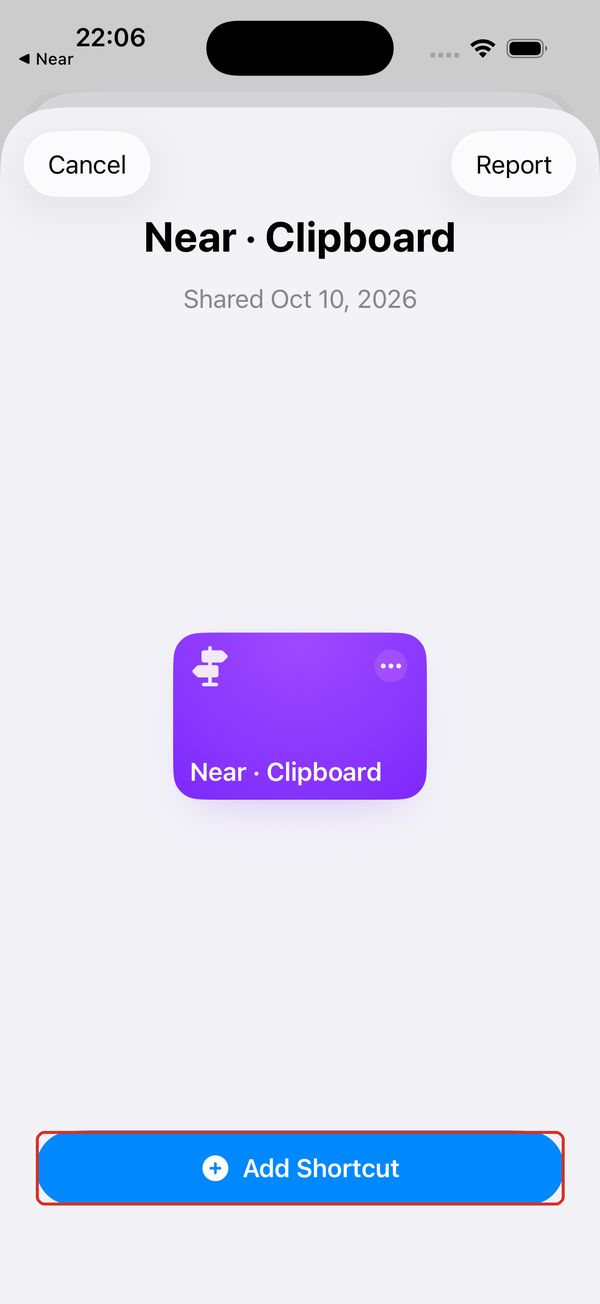
Add Shortcut: save the preset named Near · Clipboard. - 2
Open Automation in Shortcuts
Open Apple Shortcuts. Tap Automation at the bottom, then + at the top right. If this is your first automation, tap New Automation.
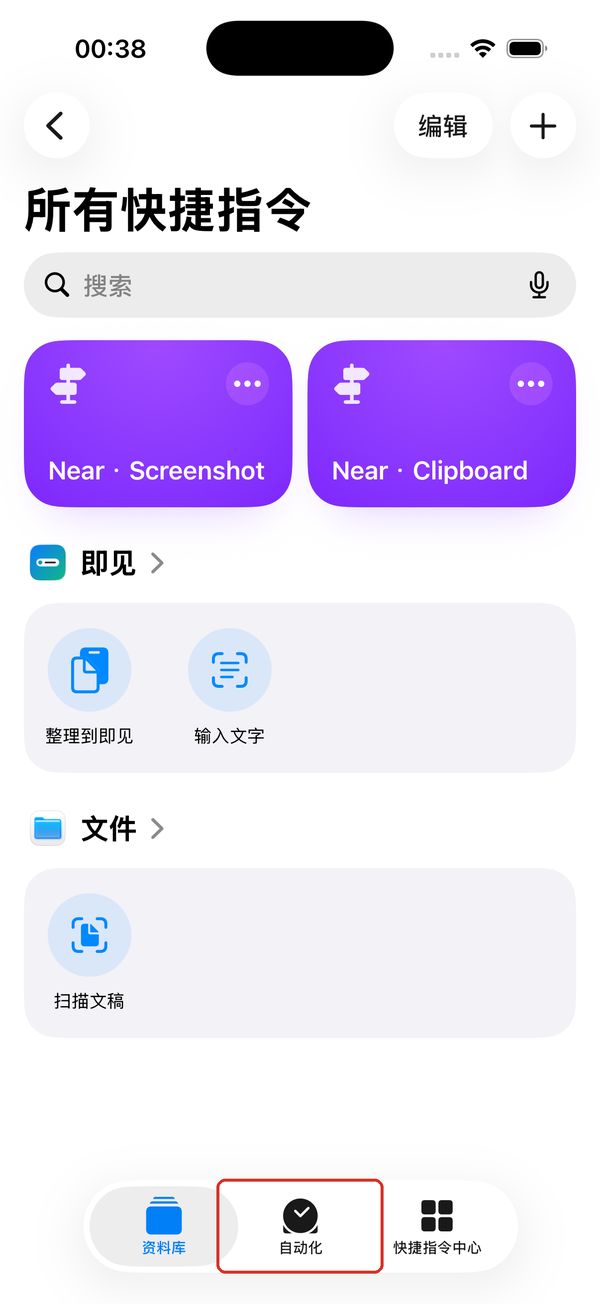
自动化 = Automation, the bottom tab in Shortcuts. - 3
Choose Message
In the personal automation trigger list, scroll to Message and tap it. The organizing actions are already included in the preset.
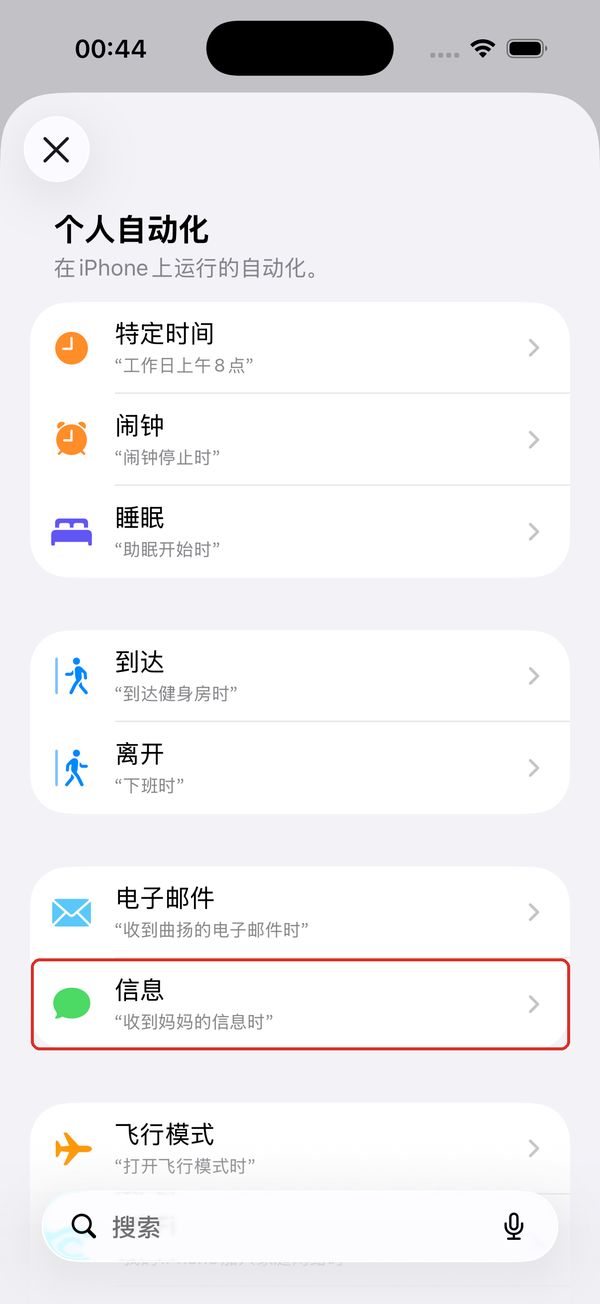
信息 = Message. Choose this system trigger. - 4
Enter a matching phrase
Tap Choose beside Message Contains. Enter a phrase found in your incoming messages, such as “pickup code”, and confirm. You can leave Sender unselected. The Chinese demo uses “取件码”, meaning pickup code.
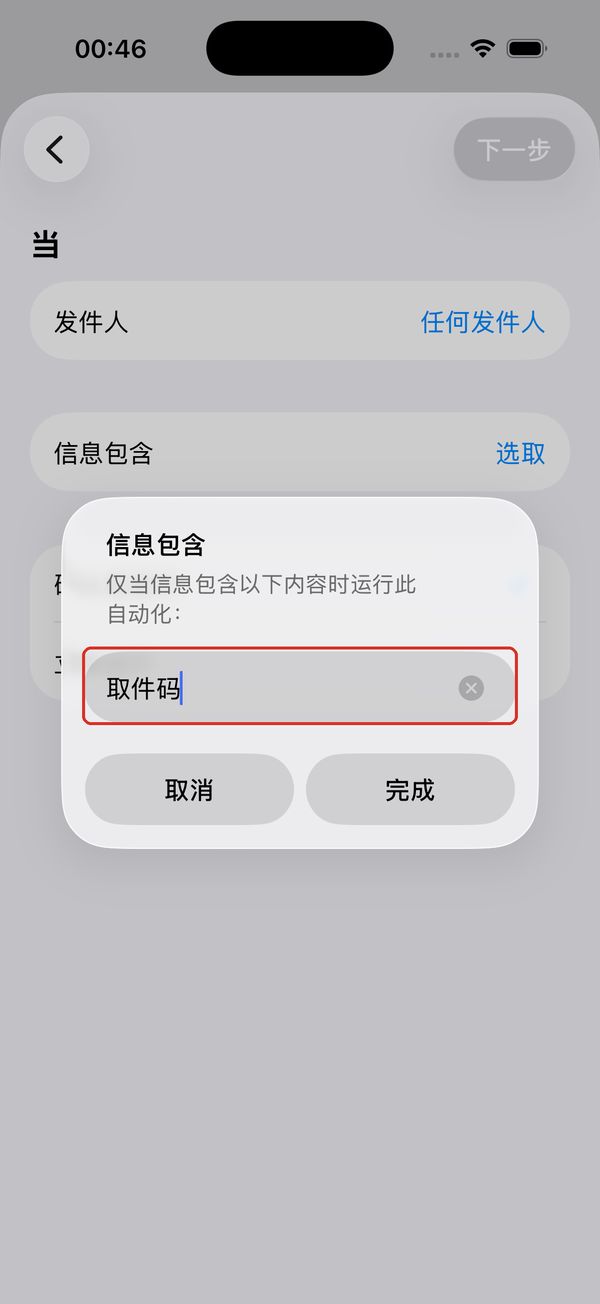
信息包含 = Message Contains. 取件码 = pickup code, the demo phrase. - 5
Choose Run Immediately
Check the saved phrase under Message Contains. Choose Run Immediately, look for the blue checkmark, then tap Next. Automatic message runs require iOS 17 or later.
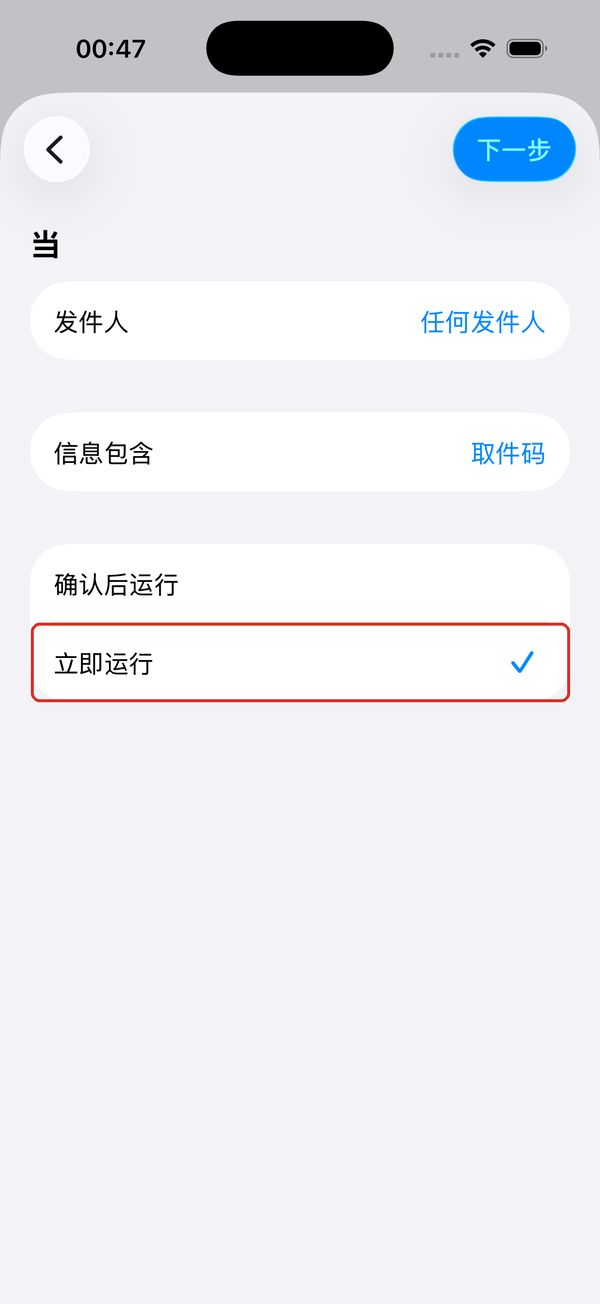
立即运行 = Run Immediately. 下一步 = Next. - 6
Select Near · Clipboard
Under My Shortcuts, find Near · Clipboard; swipe horizontally if needed. Select it and follow the system prompts to save. There are no organizing actions to build yourself.
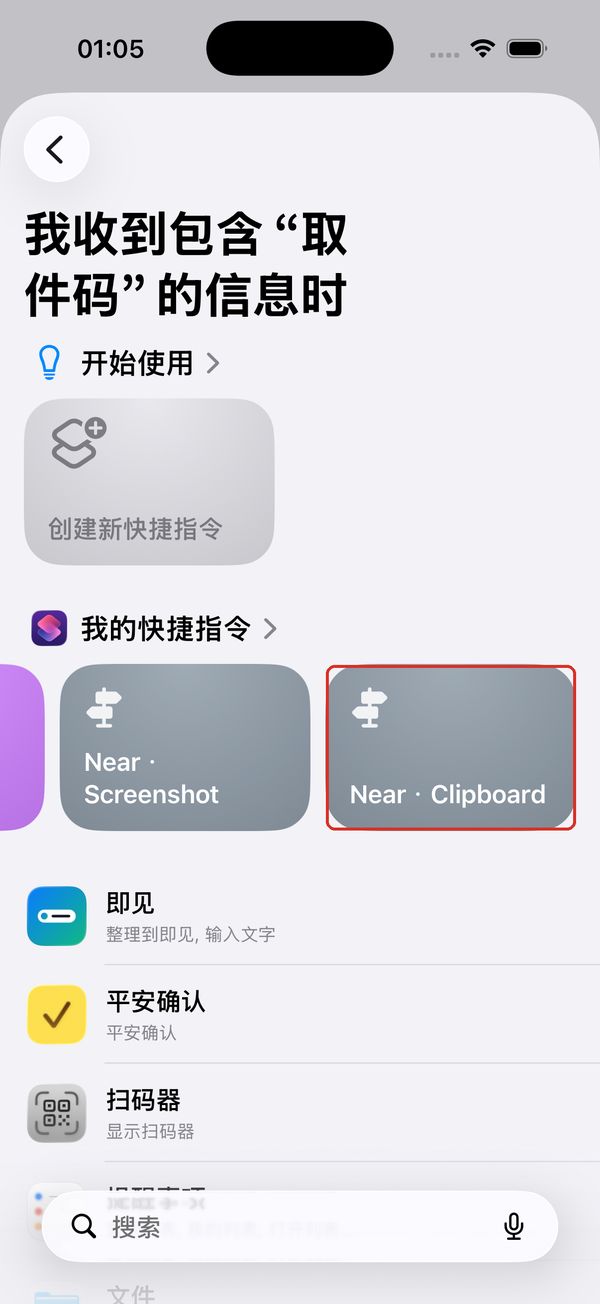
我的快捷指令 = My Shortcuts. Select Near · Clipboard. - 7
Check the three saved settings
Confirm Run Immediately, your Message Contains phrase, and Near · Clipboard as the action. Allow the first system permission prompts as needed. Routine imports then run without confirmation each time.
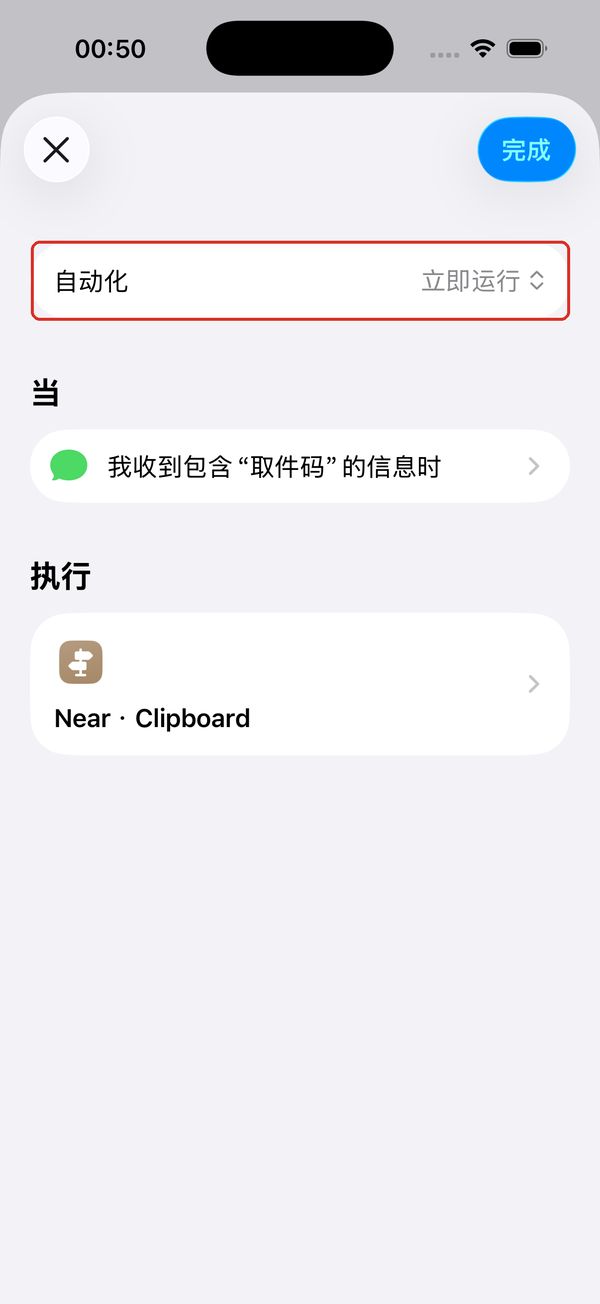
Saved rule: run mode, message condition and the shortcut to execute.
Use a phrase that actually appears in your incoming messages. The screenshots consistently use the Chinese demo phrase “取件码”. For another phrase, create another message automation. The preset already contains the organizing actions.
From then on, there is no Run button to tap
- A new matching message arrives
- Shortcuts runs Near · Clipboard
- Near imports and organizes a card
After the initial permission prompts, routine imports need no copying, pasting or confirmation to run. Near displays cards according to their status and timing; unclear details may need review.
Check it once after setup
Wait for a new matching message, or ask someone you know to send the practice text below. Open Near and check the pickup code and location. Use the same phrase in your automation condition.
Pickup code: 86-204. Collect your parcel at the community pickup point.
Practice text, not a real order. Creating an automation does not import old messages.
02 · Organize a screenshot with Back Tap
Useful for train tickets, flight details and pickup pages. Assign the shortcut once, then tap the back of your iPhone on the page you want to capture.
- 1
Add the screenshot preset
Open Near → Settings → Quick Access → Add in One Tap → Organize a Screenshot. Follow the system prompts to add Near · Screenshot.
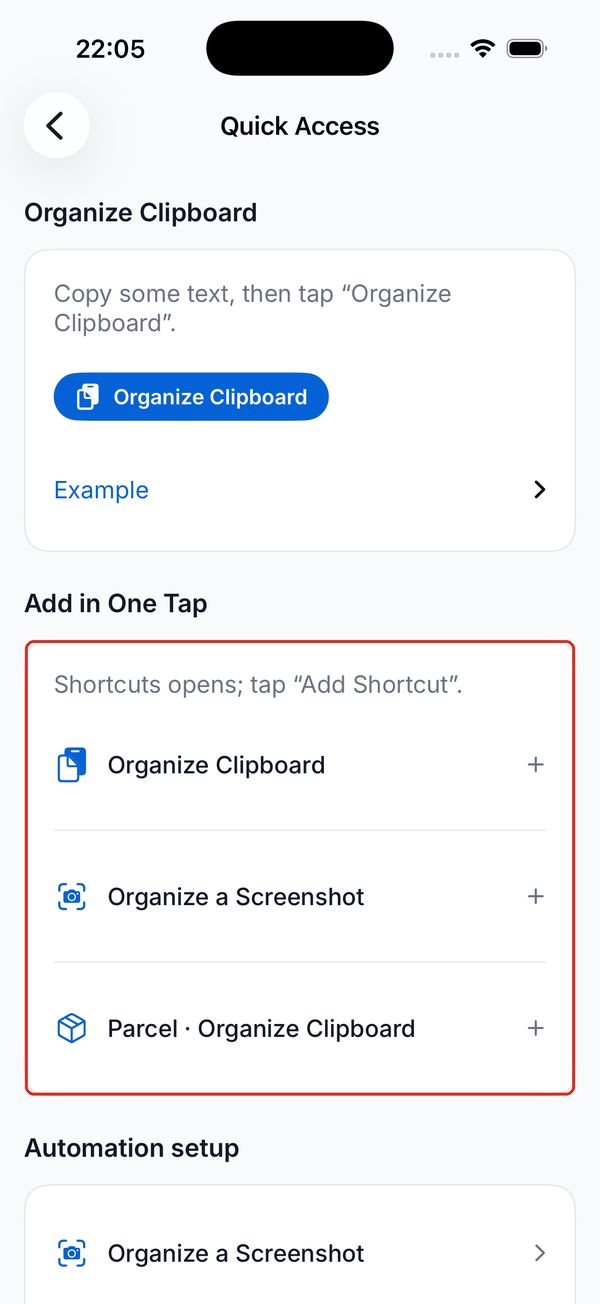
Add in One Tap: choose Organize a Screenshot. - 2
Open iPhone Settings → Accessibility
Leave Near and open the iPhone Settings app. Scroll to Accessibility and open it.
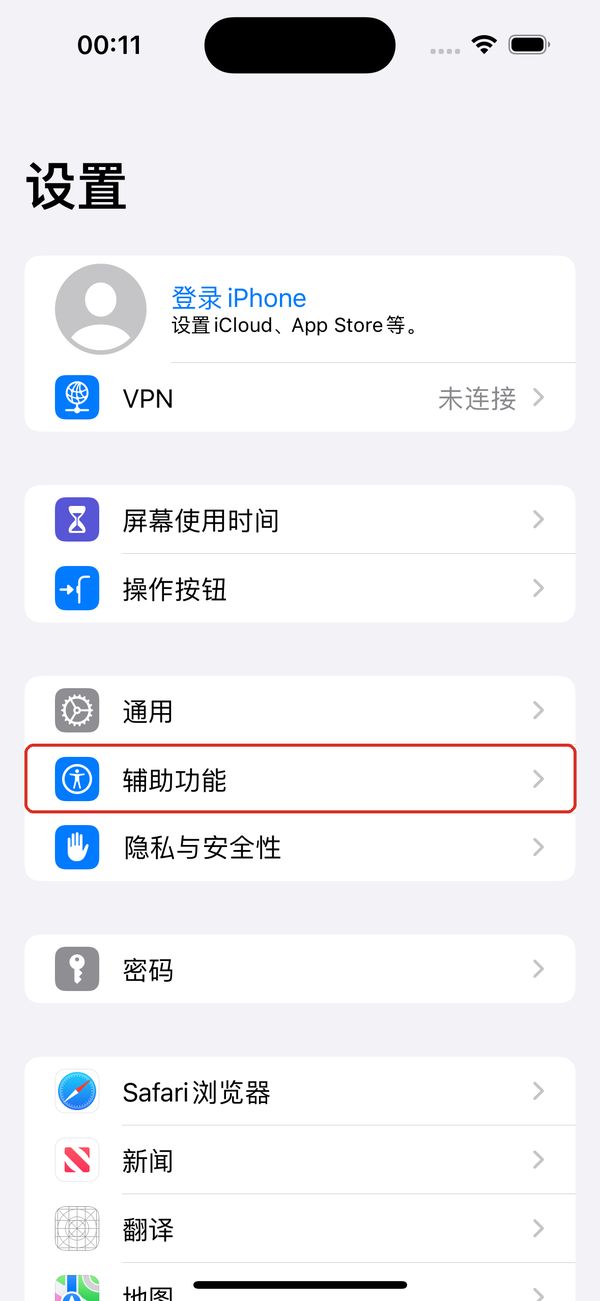
辅助功能 = Accessibility in iPhone Settings. - 3
Choose Touch
Under Physical and Motor, choose Touch. The position of this group may vary by iOS version.
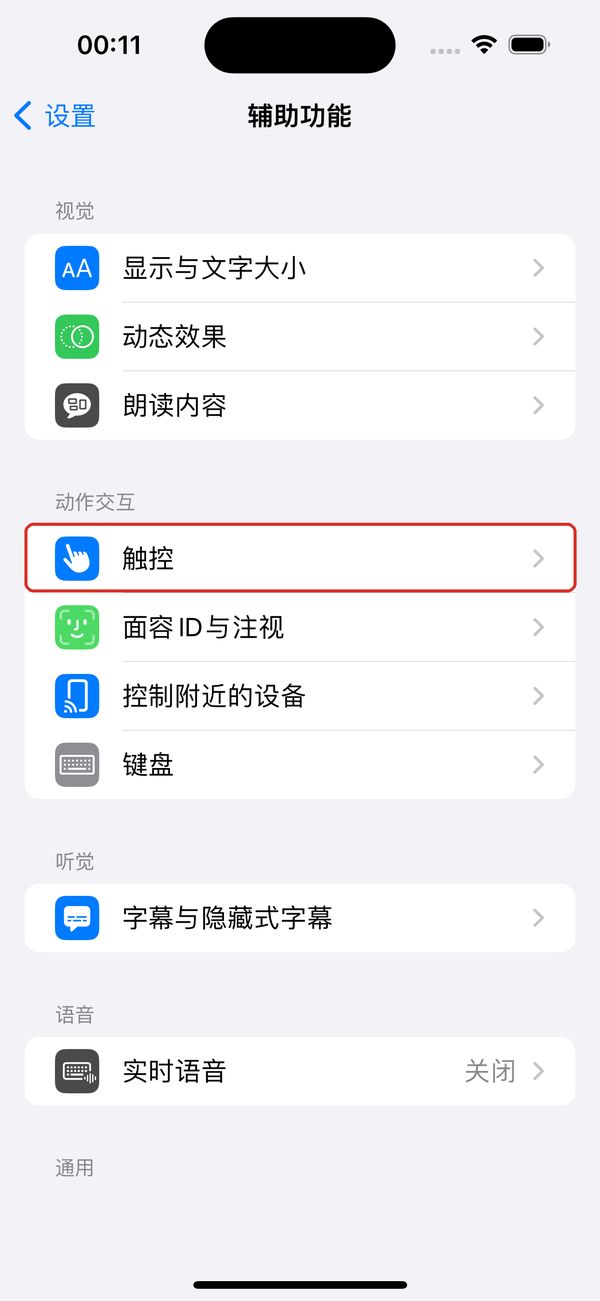
触控 = Touch, under Physical and Motor. - 4
Assign Back Tap to the preset
On your iPhone, scroll down in Touch to Back Tap. Choose Double Tap or Triple Tap, scroll to the shortcuts list and select Near · Screenshot. Use Triple Tap if Double Tap is already assigned.
- Touch
- Back Tap
- Double Tap / Triple Tap
- Near · Screenshot
- 5
Return to the page you want to capture
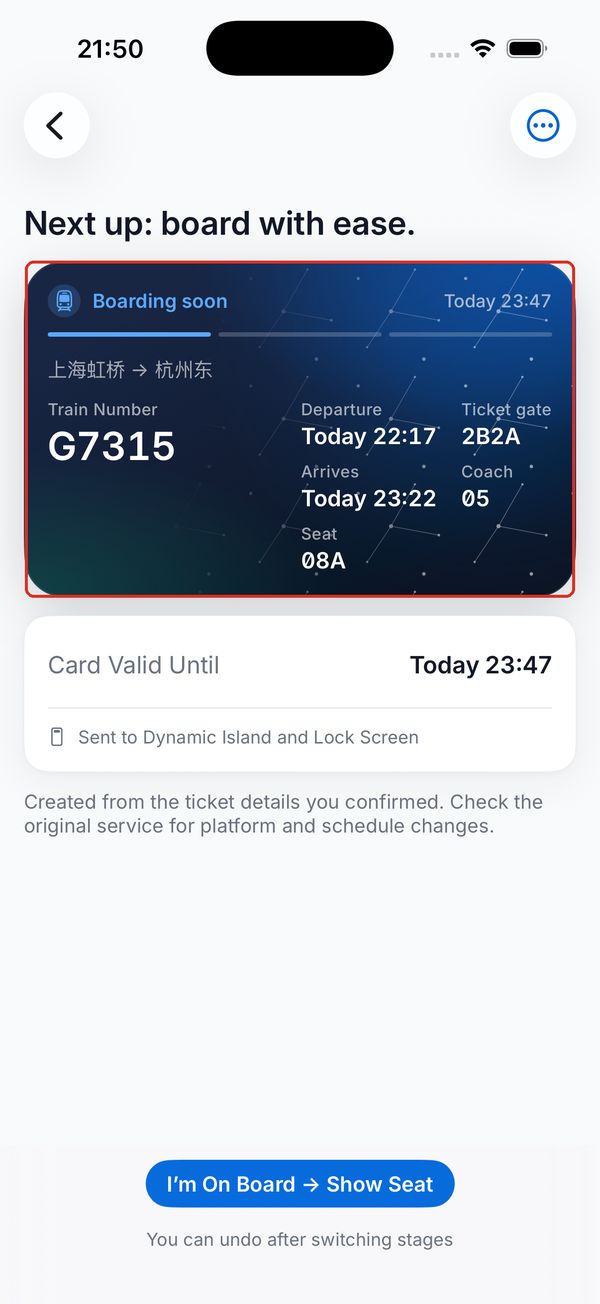
Open your ticket, flight or pickup page and keep dates, numbers and locations fully visible. Tap the back of your iPhone. Allow image sharing on the first run, then check the recognized date, service number and seat before using the card.
The two Settings screenshots were captured in the simulator. Use the path above for Back Tap and shortcut selection on a supported iPhone. Stay on the target page to avoid capturing Shortcuts itself. Existing images can be selected in Near; your photo library is not continuously scanned. Use the original service for trip updates.
03 · Import copied text whenever you need it
Copy text, then open Near → Quick Access and tap the blue Paste and Organize button. Or run Near · Clipboard in Shortcuts. Add in One Tap → Organize Clipboard saves the preset. No automation setup is needed.
When run manually, the preset organizes copied text. When run by a message automation, it organizes the message supplied by the system.
04 · Choose a photo from Control Center
On iOS 18 or later, open Control Center → touch and hold an empty area → Add a Control → search for Near → add Near Recognize. Tapping it opens Near so you can choose a photo. Use Near · Screenshot to capture the screen you are viewing.
Common questions and fixes
A message arrived, but nothing happened
Check that the new message contains your phrase, the automation is enabled and its action is Near · Clipboard. On iOS 17 or later, choose Run Immediately. Test with a new message; creating an automation does not import old messages.
Old clipboard text was imported instead
Add the Organize Clipboard preset again in Near, then select the newly saved Near · Clipboard in the message automation. If it still happens, check that the shortcut receives the incoming message body rather than using a separate action that reads old clipboard content.
No text was recognized, or the wrong page was captured
Open the ticket, flight or pickup page first. Keep dates, numbers and locations clear and complete, then use Back Tap. Running the preset while viewing Shortcuts can capture Shortcuts itself. Choose existing images directly in Near.
The wrong card type keeps being selected
Add Organize a Screenshot again and reassign Near · Screenshot. This preset captures the screen and passes the image to Organize in Near. If you edited the shortcut, check that its scene is set to automatic recognition.
The card is in Near, but not on the Lock Screen
Check its status, start time, expiry and any details needing review. If another task is active, complete it before starting the next. Check Near’s Live Activities permission in iPhone Settings. Dynamic Island needs a supported model; ordinary text cards use widgets.
Every run still asks for confirmation
On iOS 17 or later, set the message automation to Run Immediately. Message automations on iOS 16 require confirmation. Allow the first system requests to pass text or images. Near may still ask you to review unclear fields; that is separate from permission to run the automation.
The app was updated, but an old shortcut still fails
Saved shortcuts do not update automatically with the app. Add the preset again, then select the new copy in your automation or Back Tap setting. Verify it works before deleting the old copy.
Back Tap does not trigger, or the preset is missing
First add Near · Screenshot and check that it appears in Shortcuts. Reassign it under Settings → Accessibility → Touch → Back Tap → Double Tap or Triple Tap. Try again on the target page with the screen on. If your device has no Back Tap option, take a screenshot and select it in Near.
Why does Control Center not capture the screen directly?
Near Recognize requires iOS 18 or later. It opens Near so you can choose a photo. To organize the current screen, use Near · Screenshot assigned to Back Tap.
A date, pickup code or seat was recognized incorrectly
Compare it with the original message or service page. Capture a clear, complete date, number and location without obscured or truncated information. Correct editable fields on the confirmation screen before use. Use the original service for changes to times, services and gates.
Running again did not create another card. Did it fail?
Check whether the same card already exists, then check Import activity for a duplicate result. A correct existing card does not need repeated imports. If the original information changes, organize the updated complete text or image.
The checks did not solve the problem
Open Near → Settings → Import activity and check the latest trigger time and result. It keeps up to 100 trigger/result entries for seven days, without original messages, pickup codes or images. Include your iOS version, steps, result message and redacted screenshots when contacting support.
How can I pause automatic message imports?
Open Shortcuts → Automation, select the rule and disable it or choose not to run it. The label varies by iOS version. Existing imported cards remain in Near.
Your content is processed on your iPhone
Message automations pass new messages that match your conditions. Near does not scan your message history directly. Text and screenshots are processed on the device and are not uploaded.
Set up messages once for automatic import. Assign screenshots once for Back Tap.