Parcel messages: add a Message trigger to the preset
Save Near · Clipboard first, then add the trigger. Keep its existing Organize into Near action.
- 01
Add the Near preset
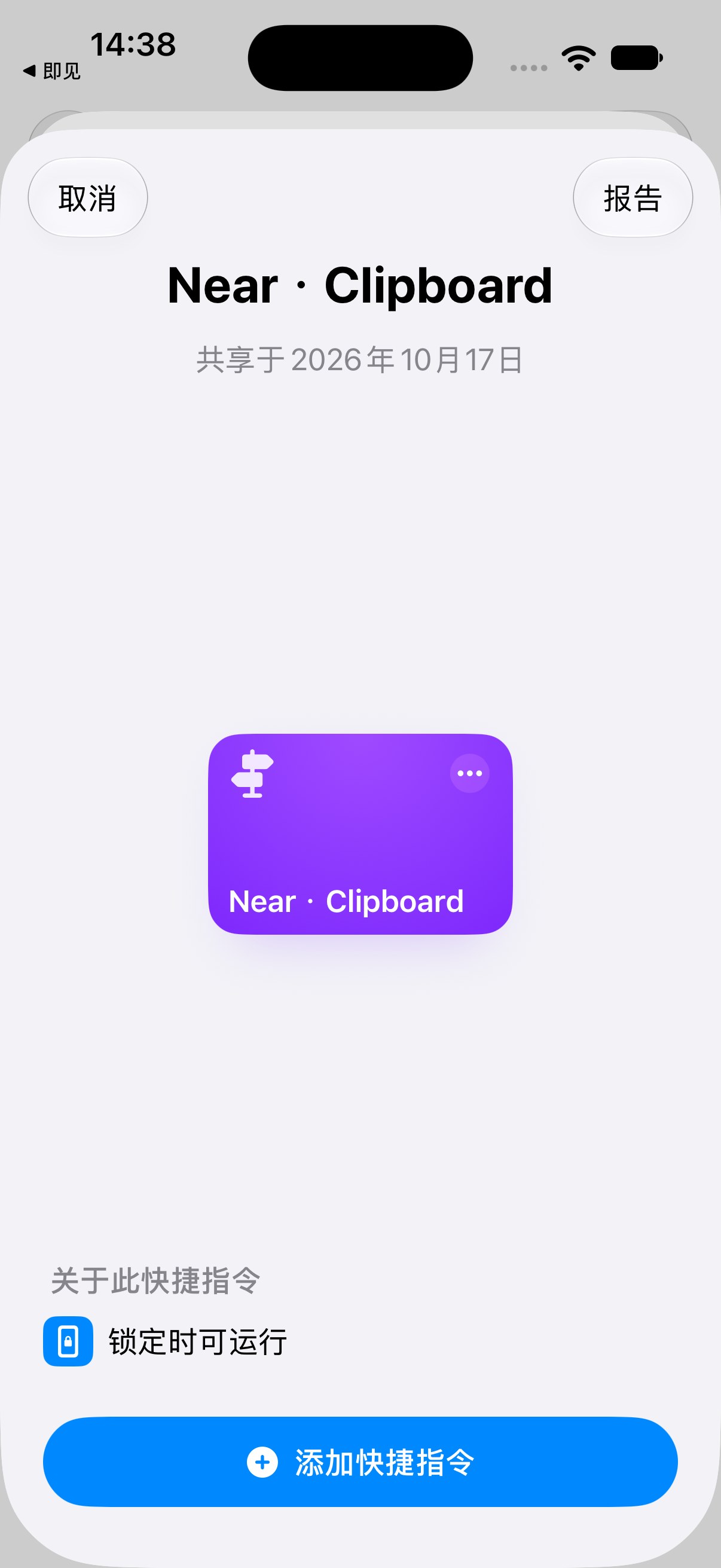
Near → Quick Entry → Add → Organize Clipboard. Tap Add Shortcut to save Near · Clipboard.
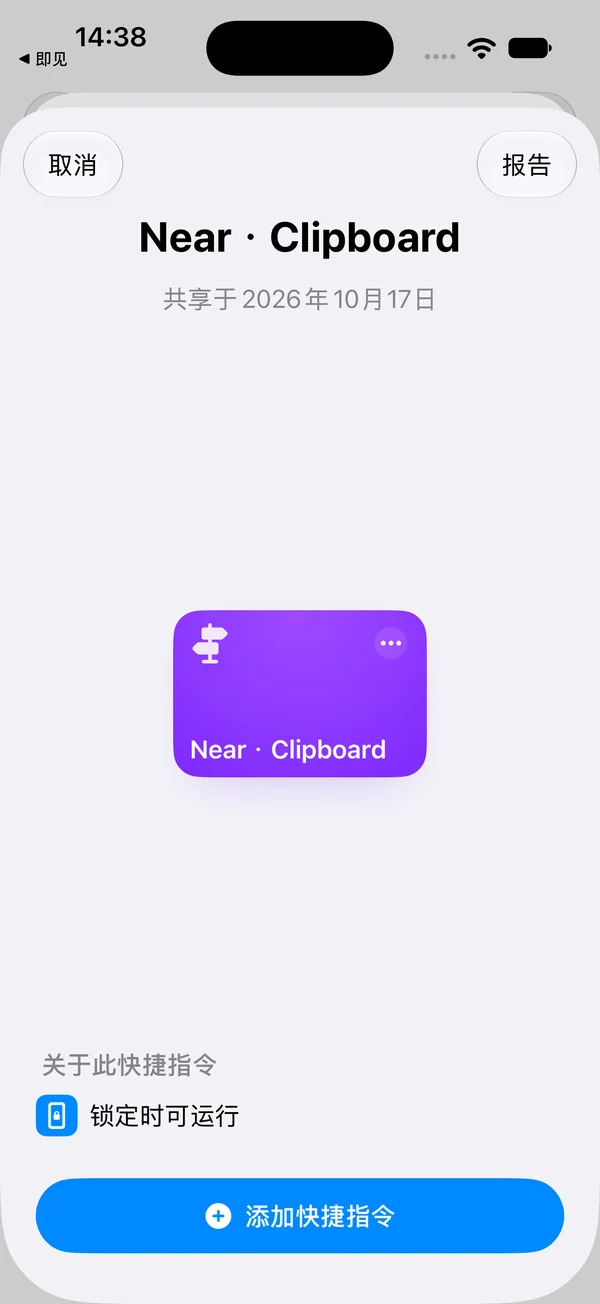
The blue Add Shortcut button at the bottom. - 02
Edit the preset
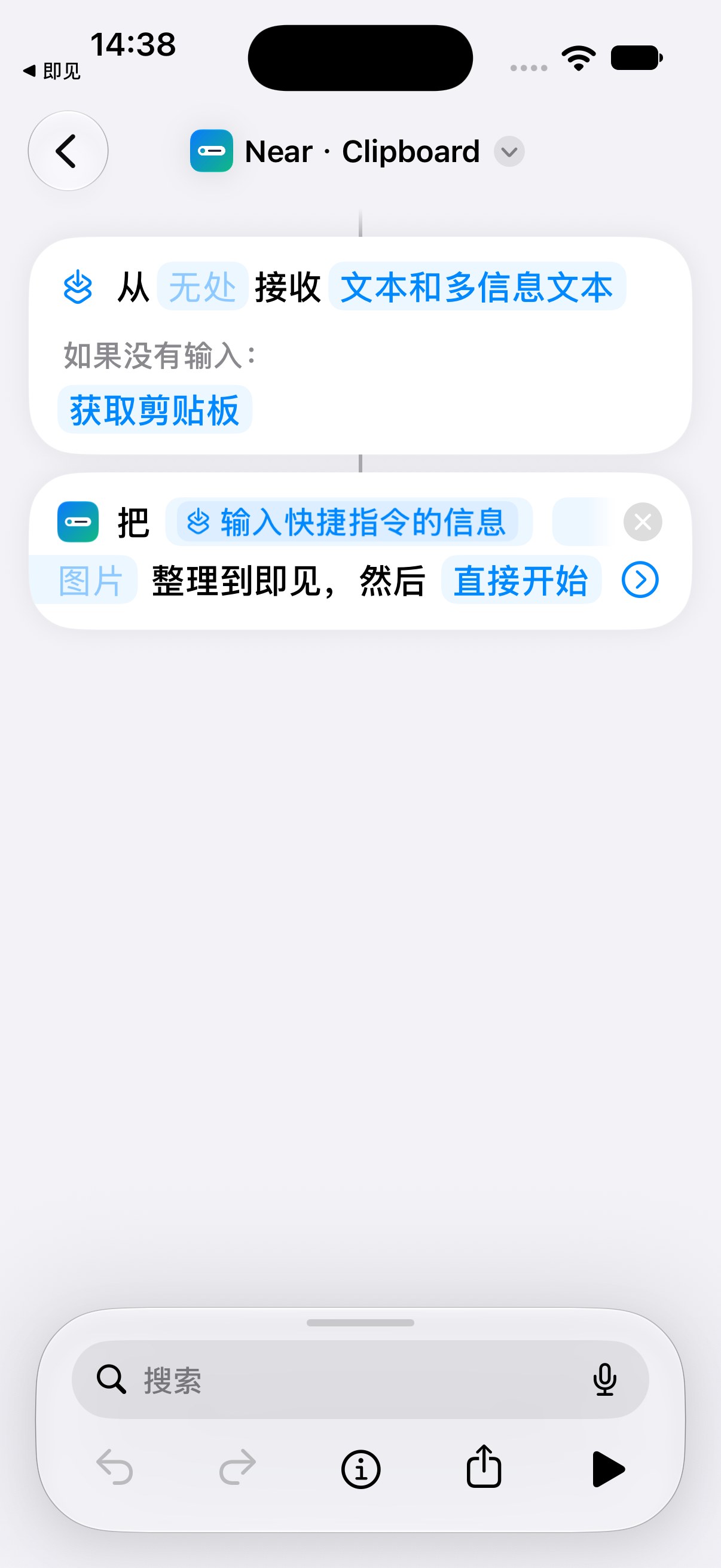
Edit Near · Clipboard in Shortcuts. You can touch and hold its tile and choose Edit. Keep the input header and the Near action.
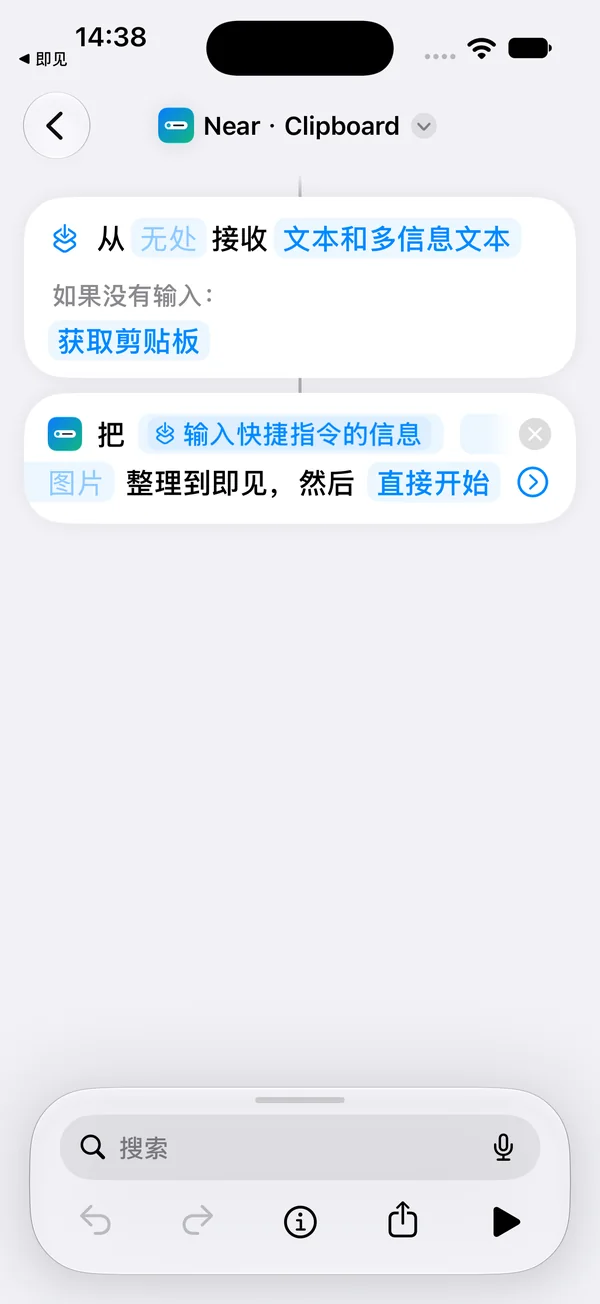
The preset accepts text and uses the clipboard only when there is no input. - 03
Search Automation, then Message
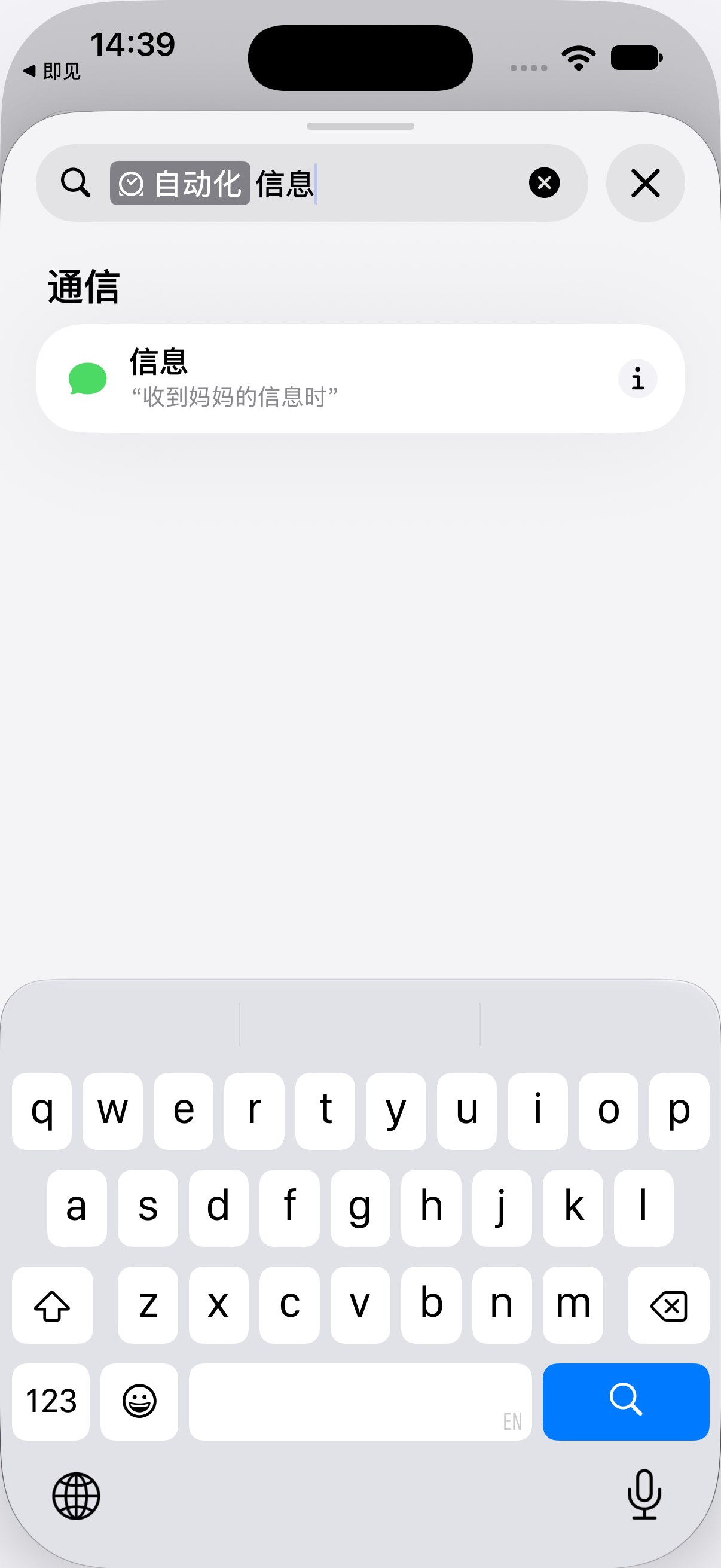
Tap the search field at the bottom, select Automation, and search for Message. Choose the Message trigger under Communication.
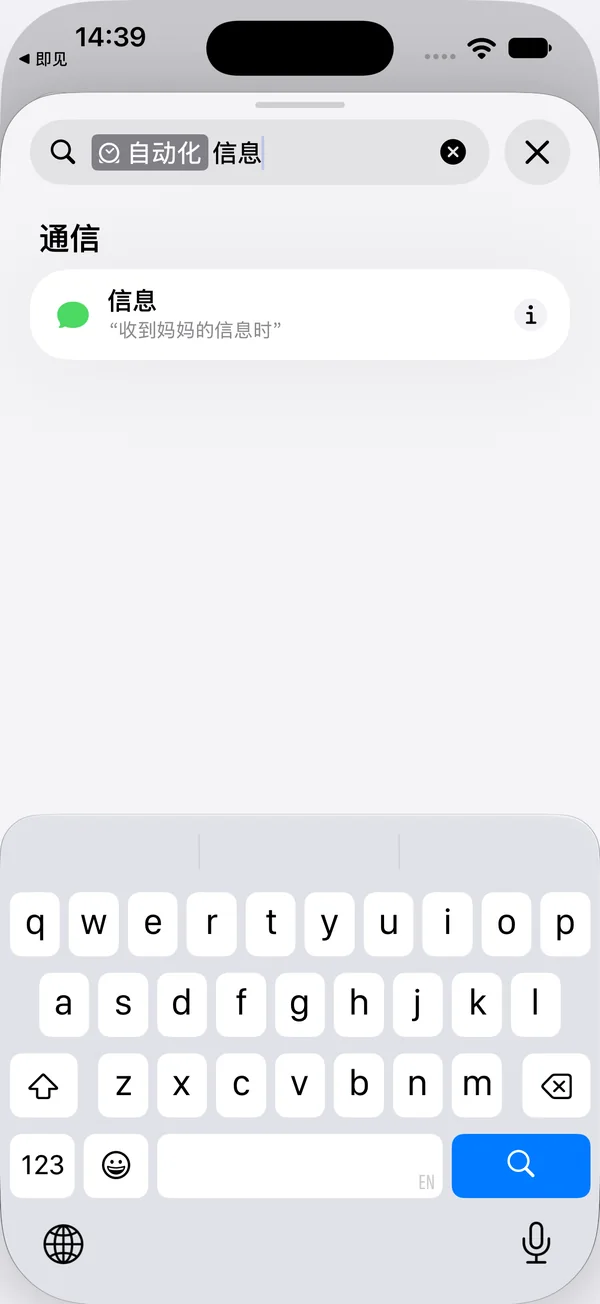
Select the Automation category first; do not choose Send Message. - 04
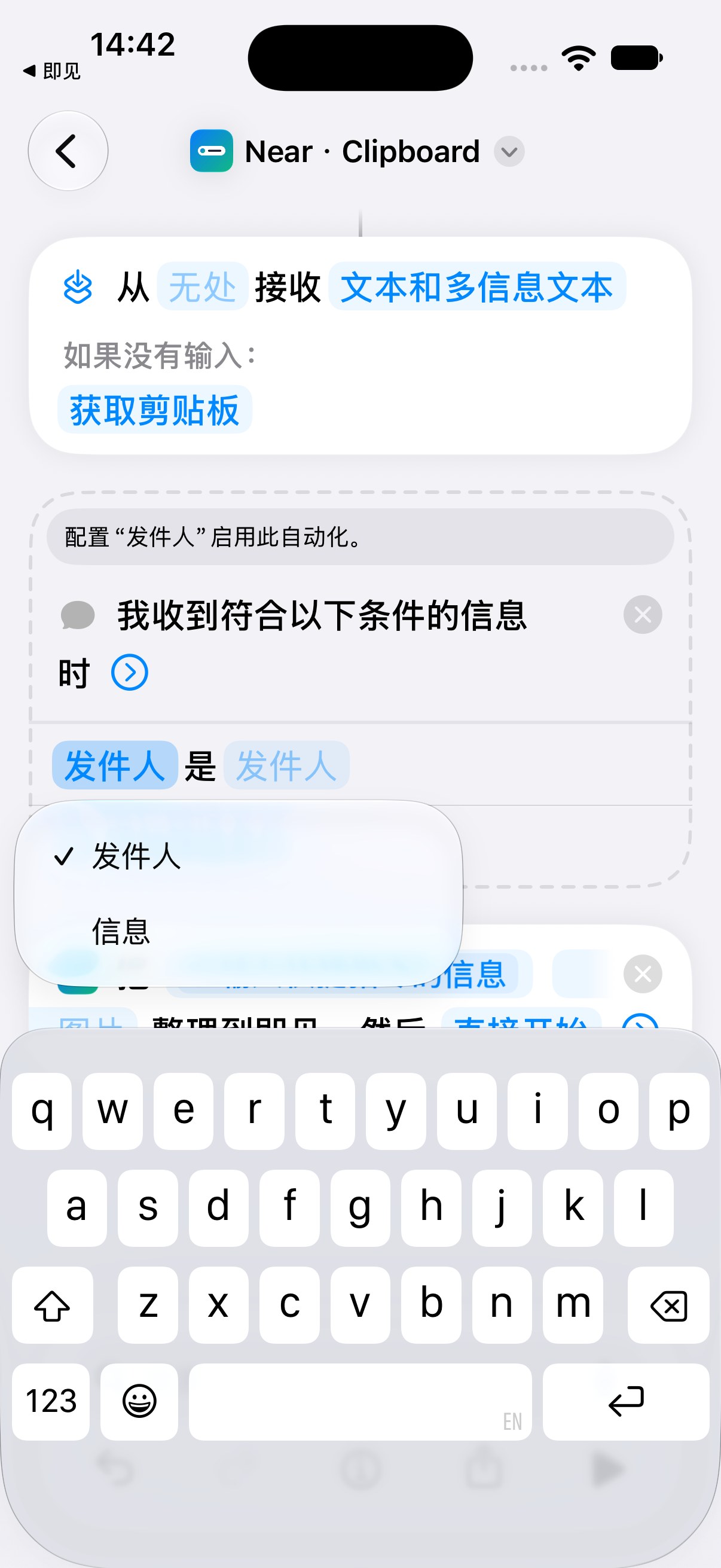
Change Sender to Message
A new rule defaults to Sender. Tap Sender (发件人) on the left of the condition, then choose Message (信息). You do not need a courier phone number.
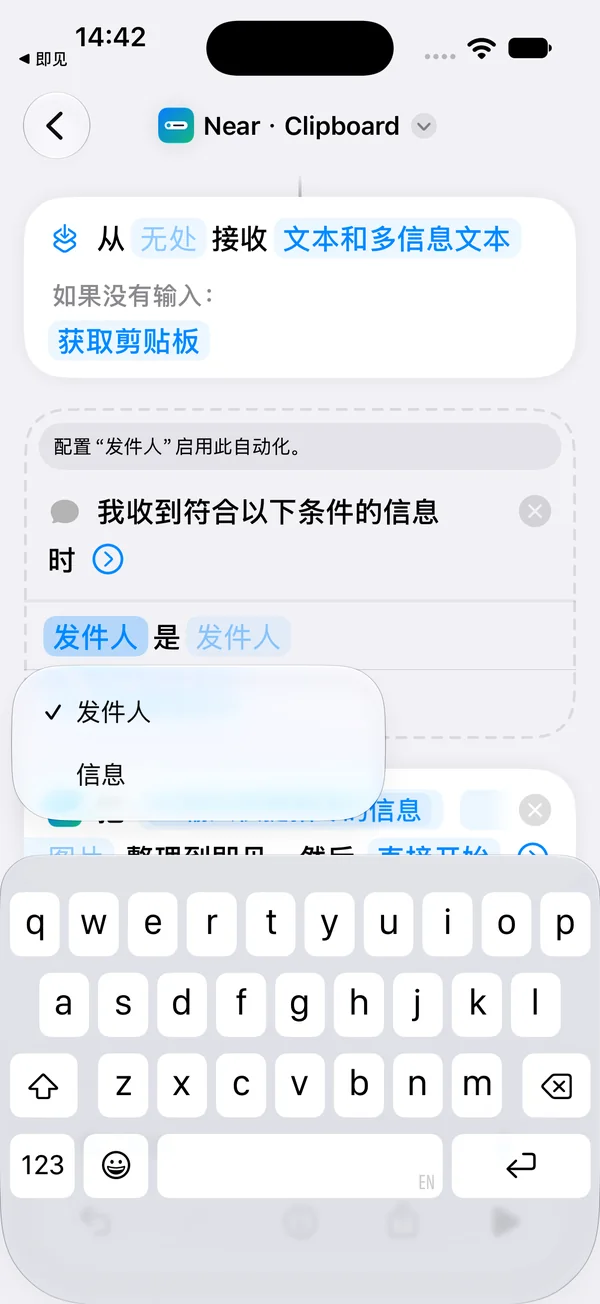
Choose Message in the menu. - 05
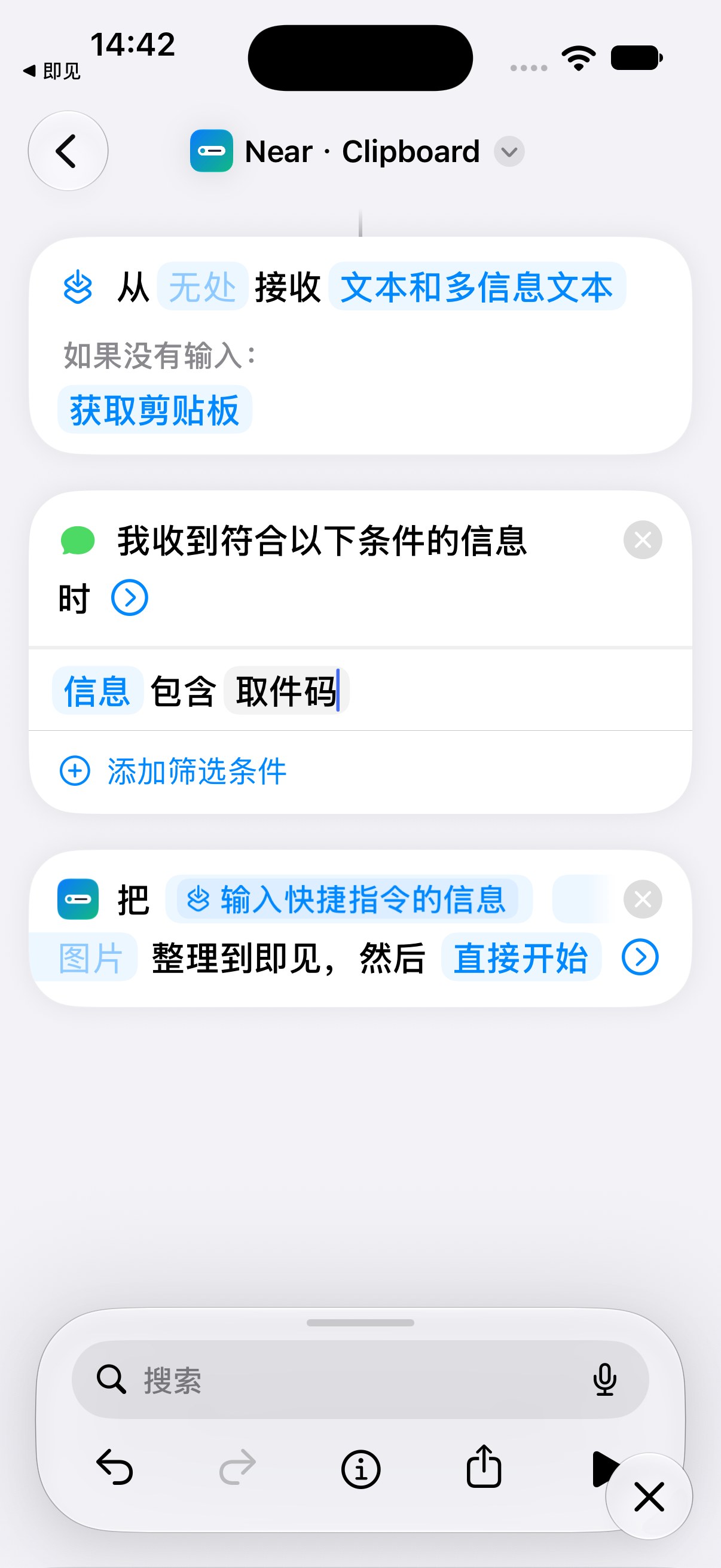
Enter a matching keyword
Tap the text field after Message Contains. This example uses 取件码, meaning pickup code. Use a keyword that appears in your actual incoming message. Multiple conditions must all match.
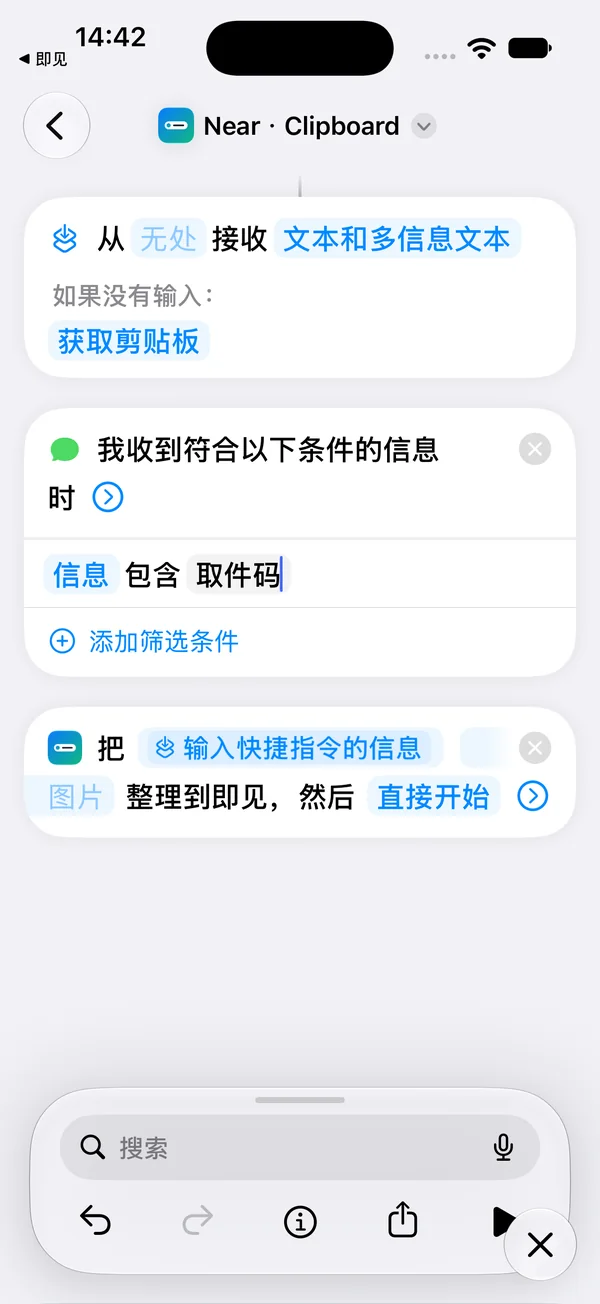
The finished condition reads Message Contains 取件码. - 06
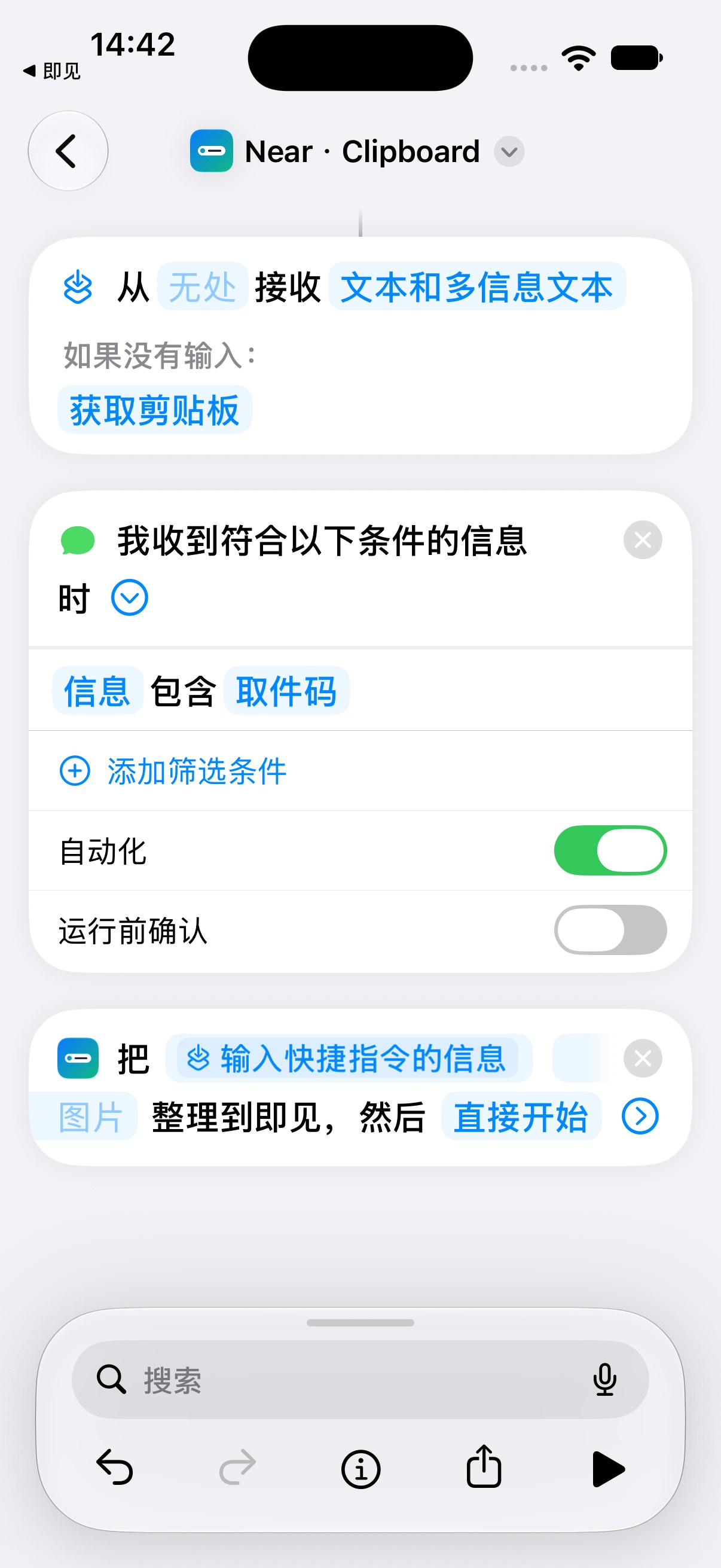
Check the run options
Expand the blue arrow next to the trigger. Ensure Automation (自动化) is on and Ask Before Running (运行前确认) is off. Return to save. These settings are already in that state in this capture.
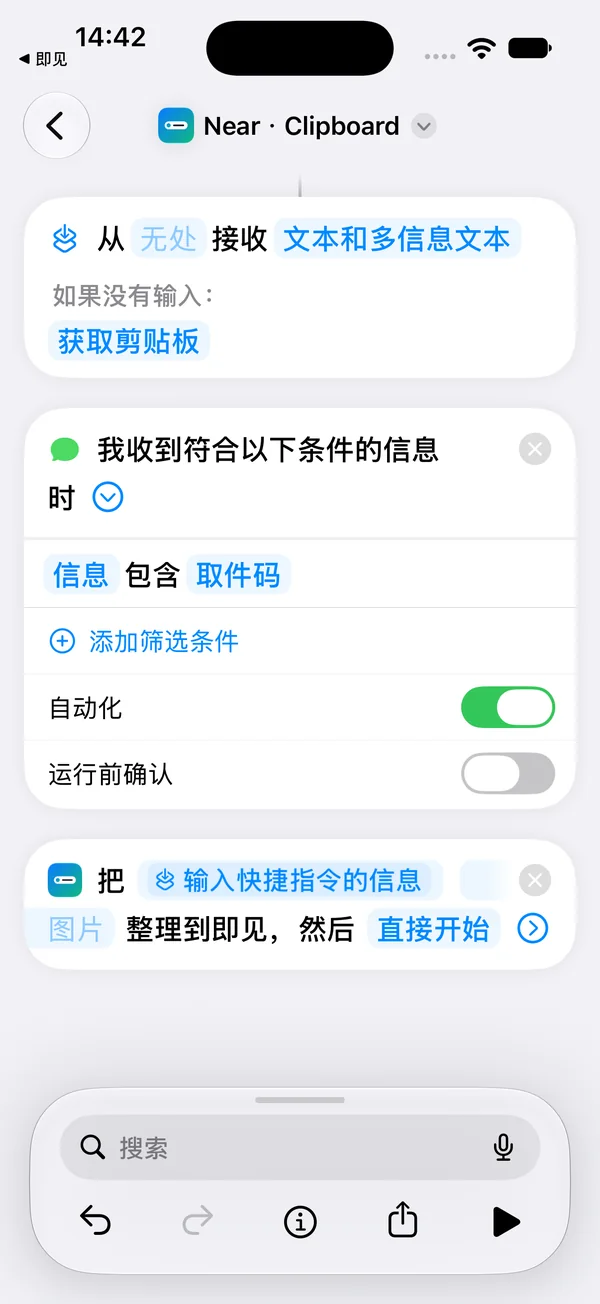
Green: Automation on. Gray: Ask Before Running off. - 07
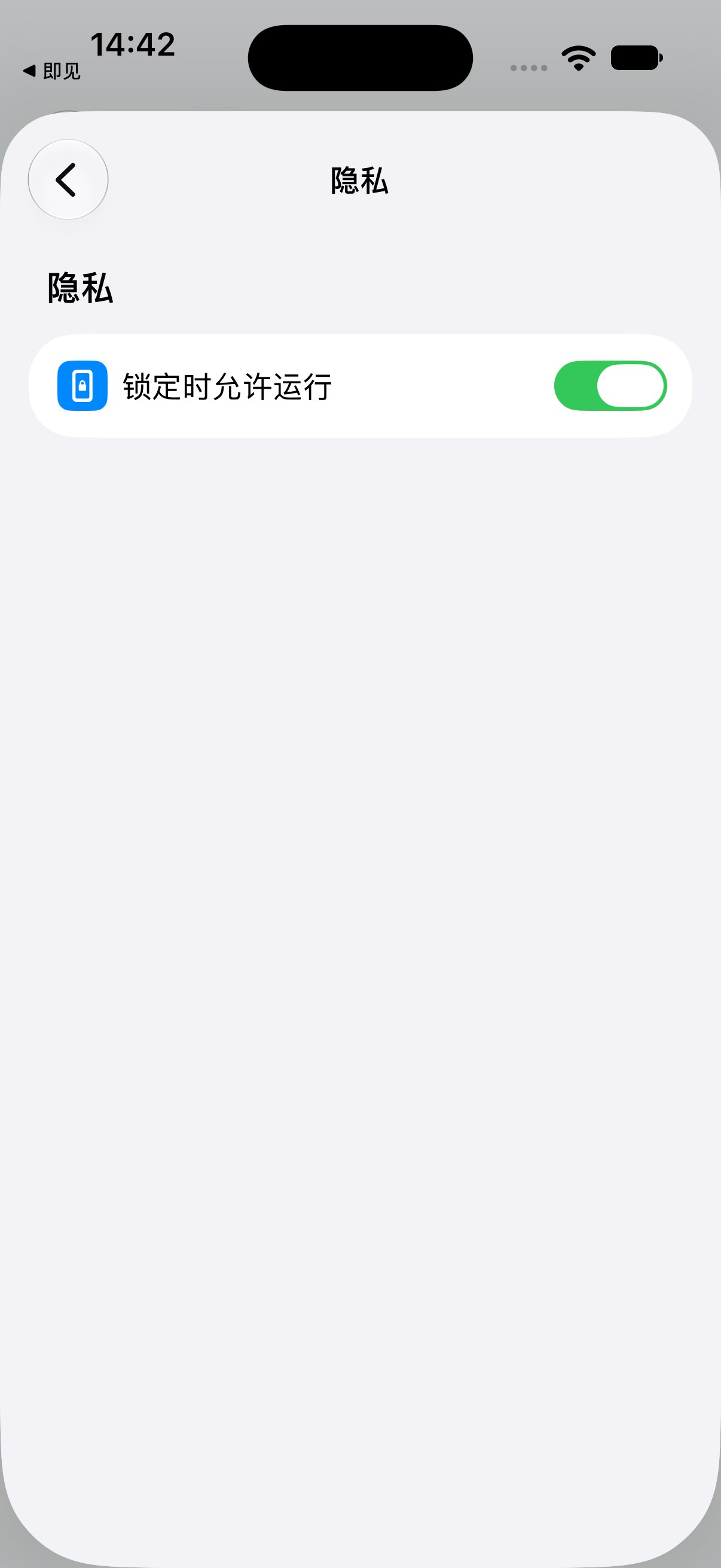
Check running while locked
Tap the circled i (Info) at the bottom → Privacy (隐私). Check Allow Running When Locked (锁定时允许运行). It was already enabled after adding this preset; finish any first-use permissions as prompted.
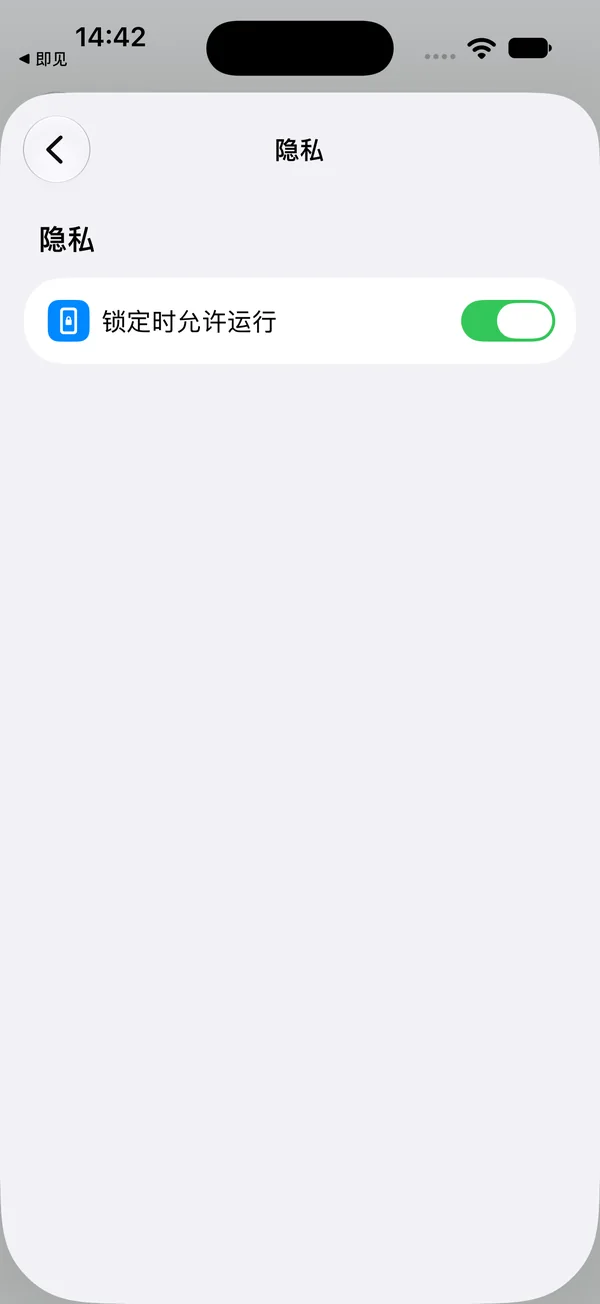
Allow Running When Locked in Privacy. - 08
Finish first-use permissions
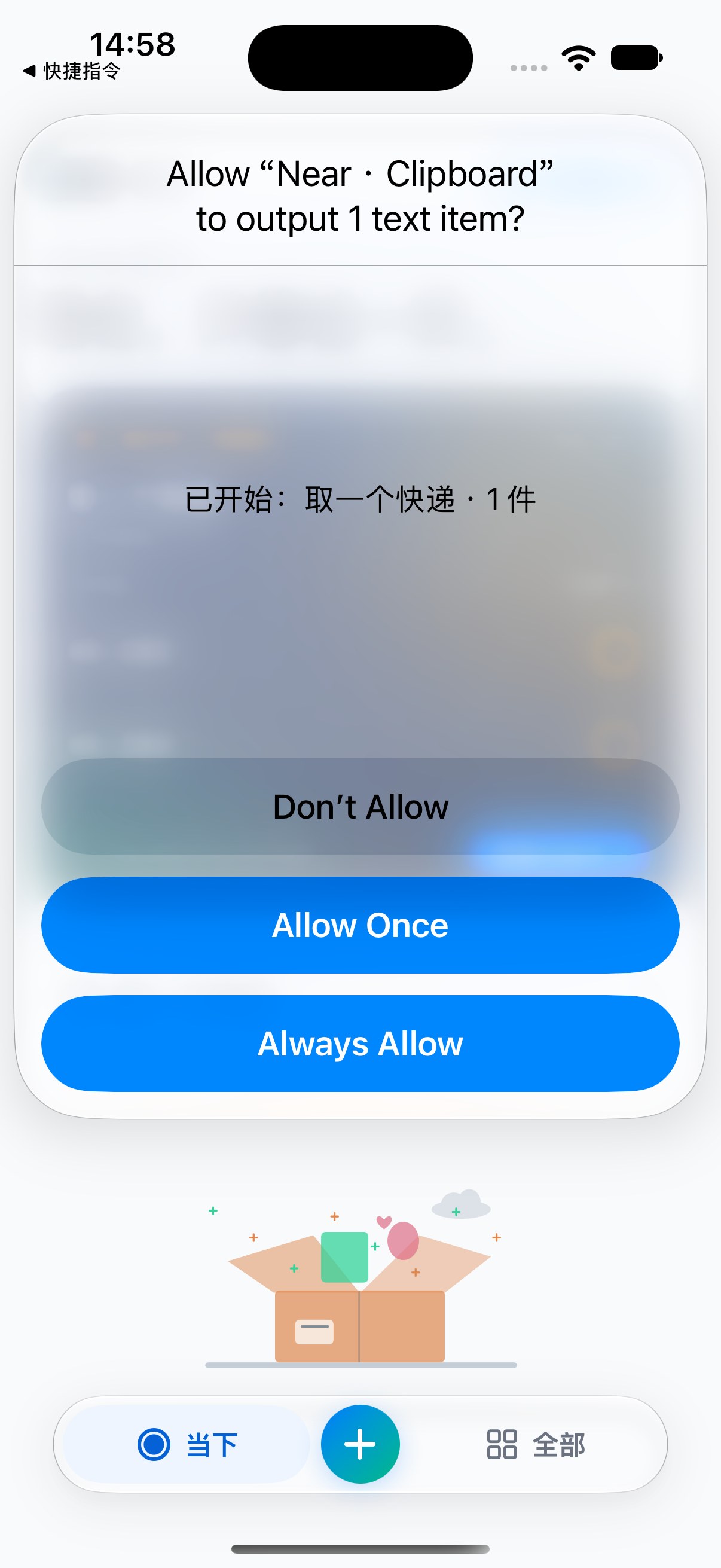
iOS may ask to run Near actions or output text. This image shows an output prompt during a system-URL test with explicit example text. Choose permissions for your intended use and complete initial prompts while unlocked.
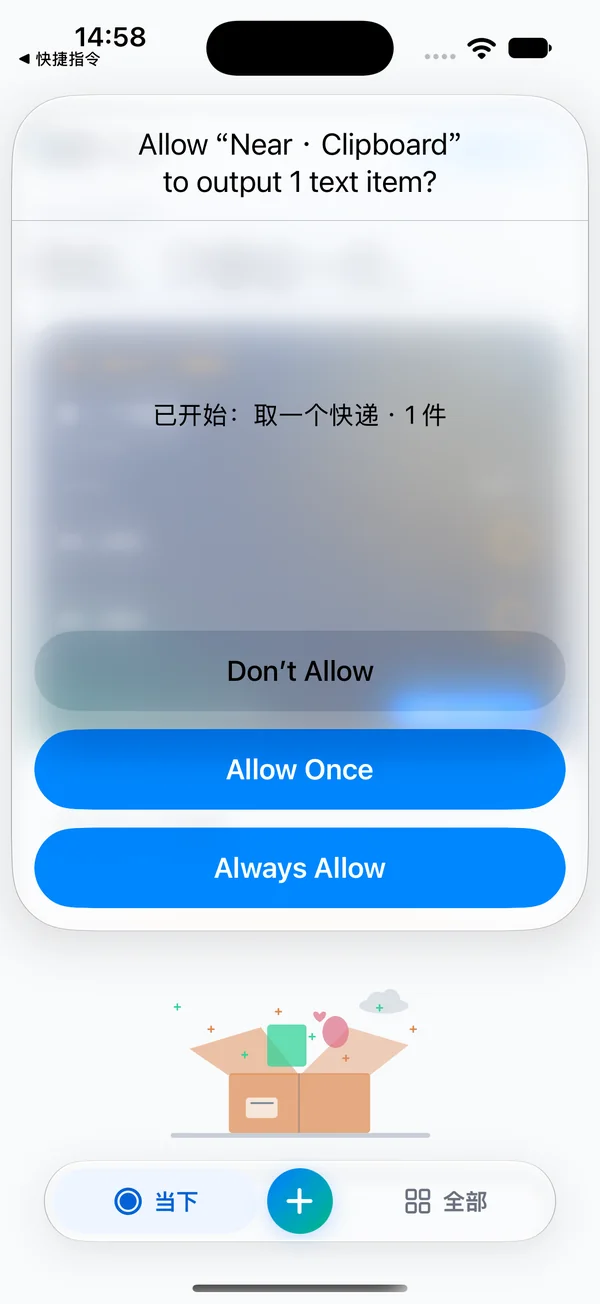
The output prompt offers Allow Once and Always Allow.
Screenshots: distinguish the two routes
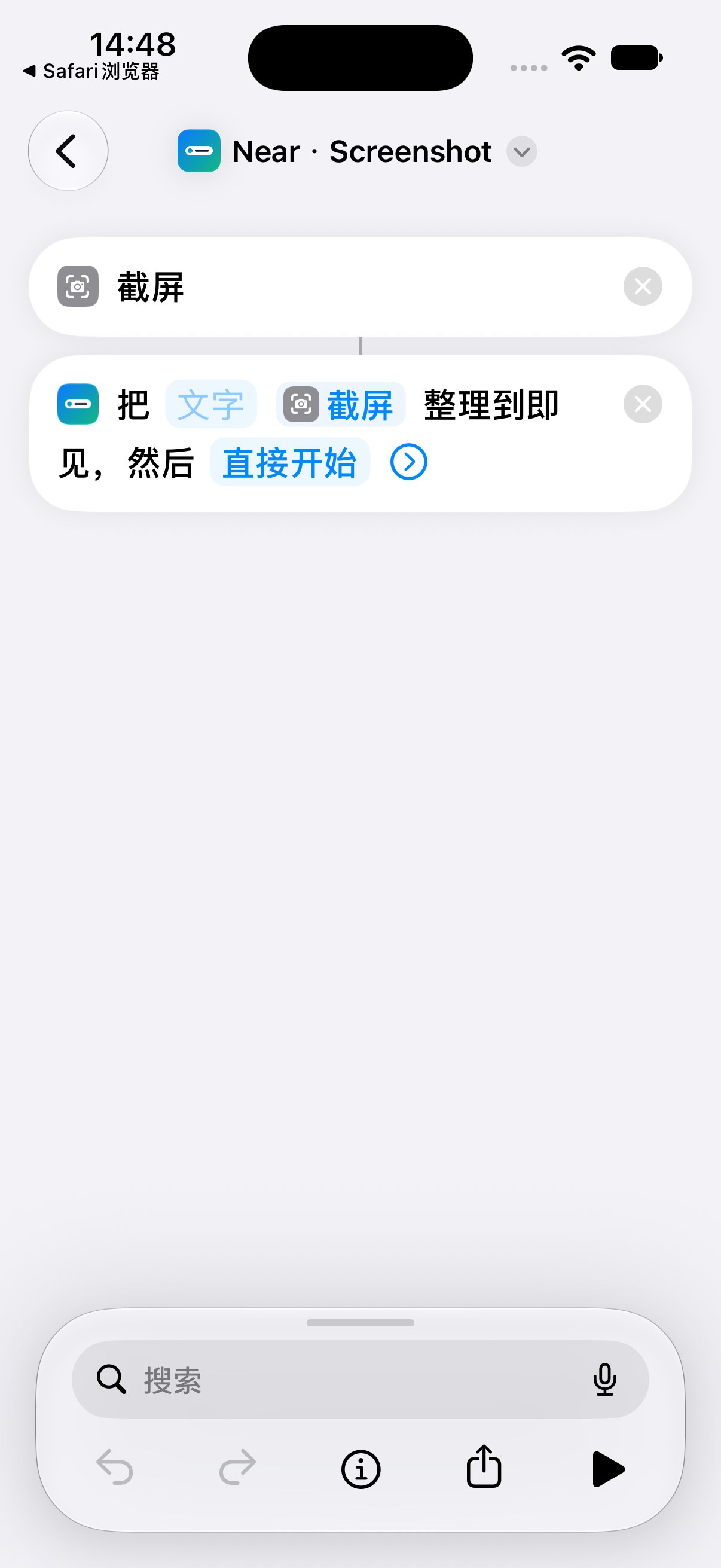
The existing Near · Screenshot preset captures the screen at run time. The new iOS 27 saved-screenshot event is a different trigger.
- 01
The existing capture preset
Near → Quick Entry → Add → Organize Screenshot. Near · Screenshot first takes a screenshot, then passes that image to Near.
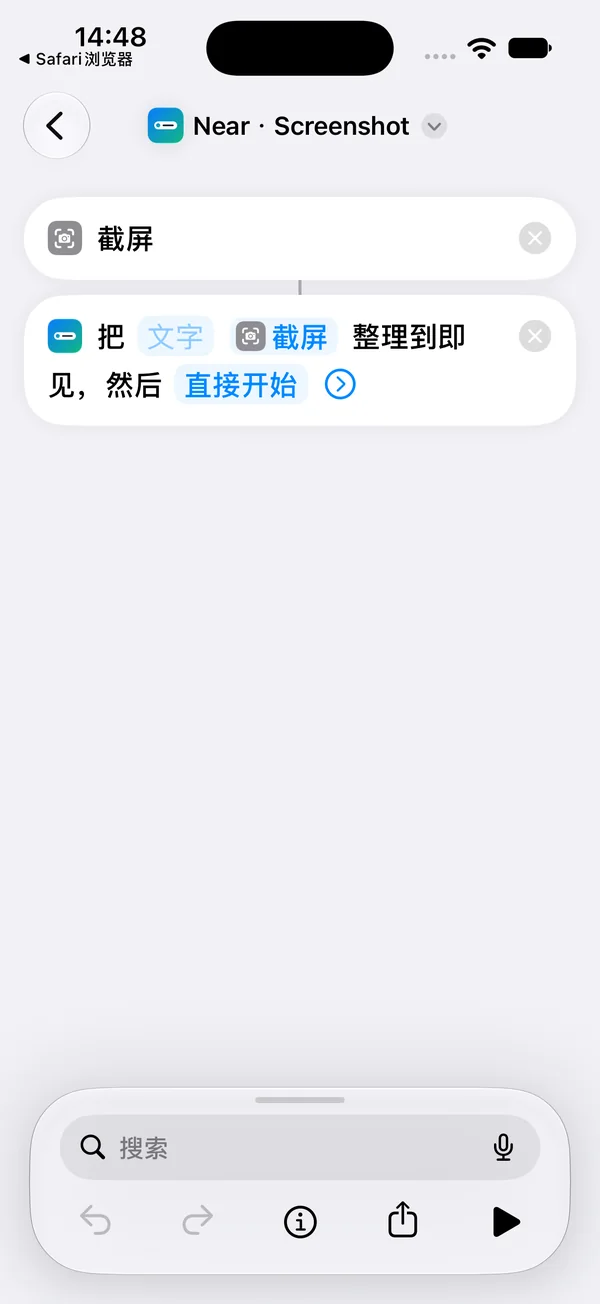
Actual preset: Screenshot → image into Near. - 02
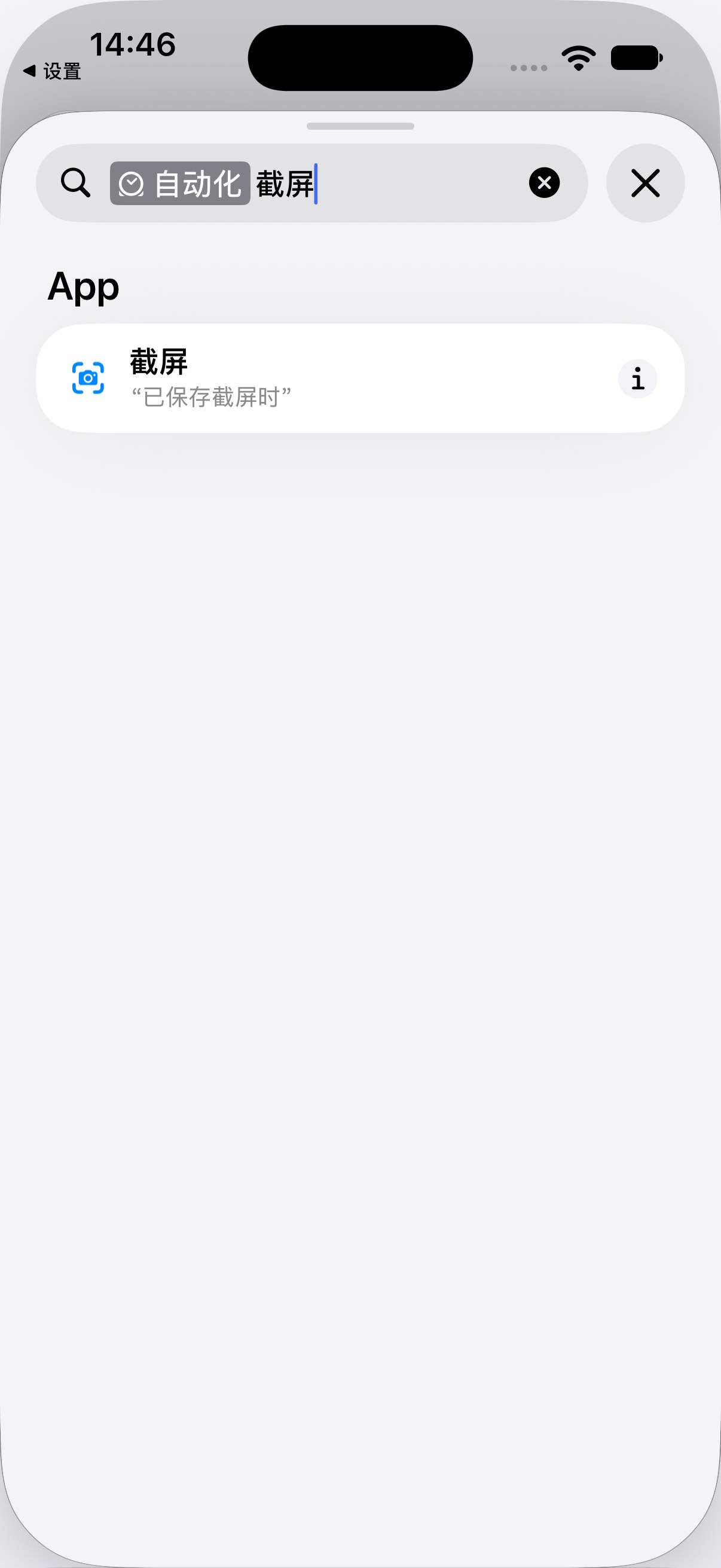
The new saved event
In the editor, select Automation and search Screenshot. The result means When a Screenshot Is Saved. It observes storage completion; it is not the same as running the existing preset with Back Tap.
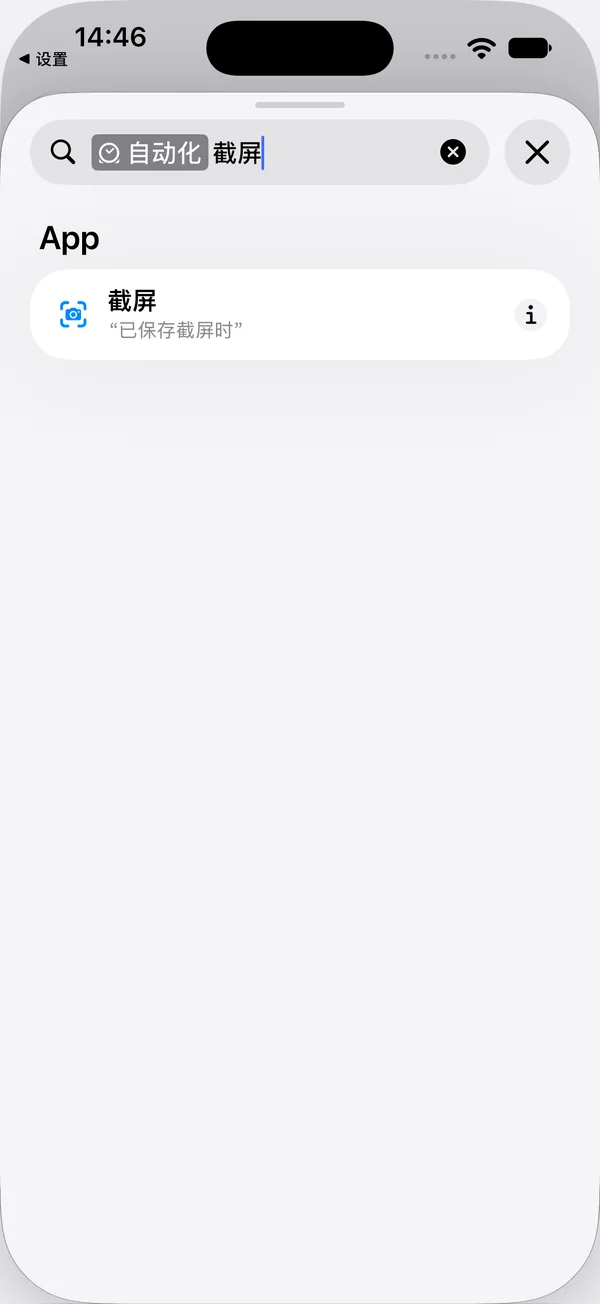
The search result is a trigger. - 03
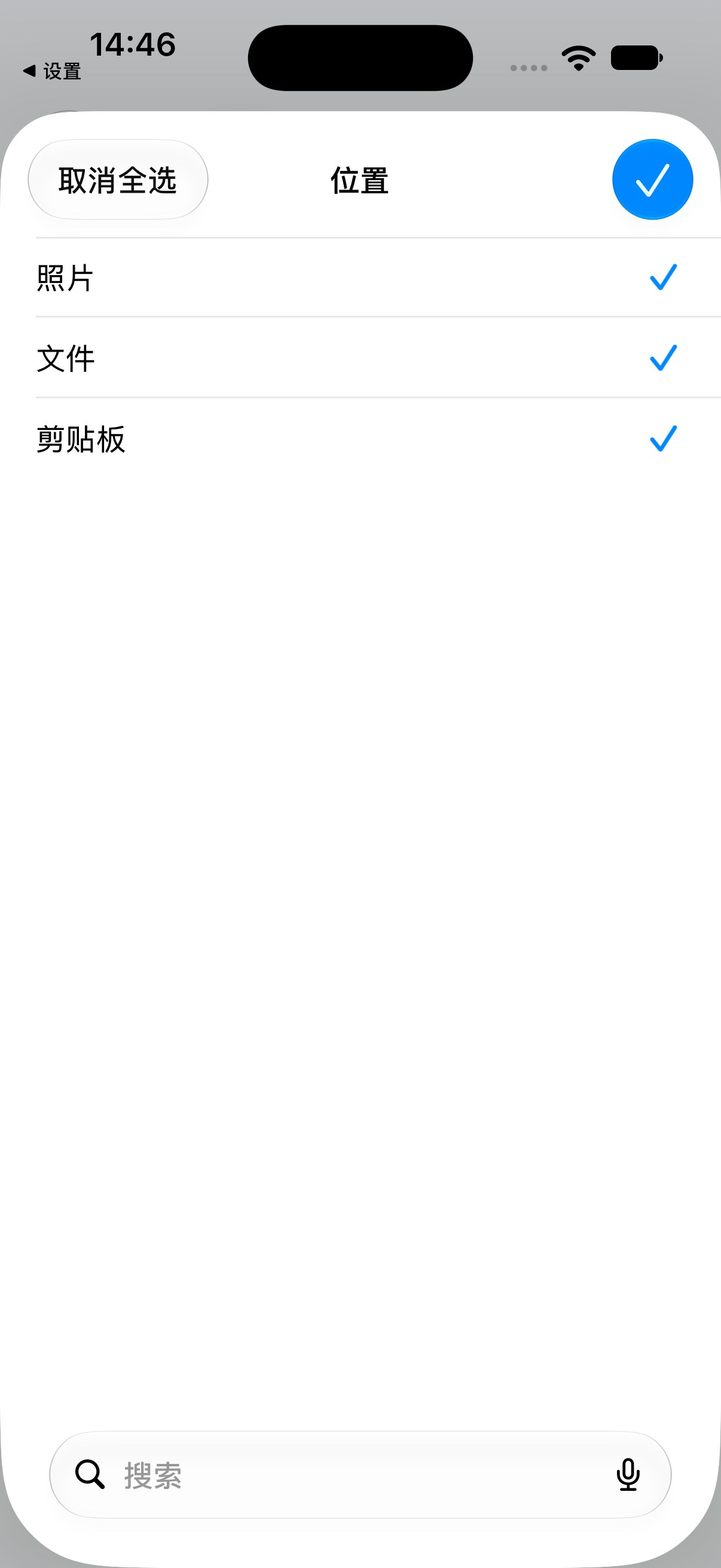
Match the storage destination
The event lets you choose Photos, Files, or Clipboard. Its selected destination must match where the screenshot is actually saved. Opening the preview alone does not confirm storage completion.
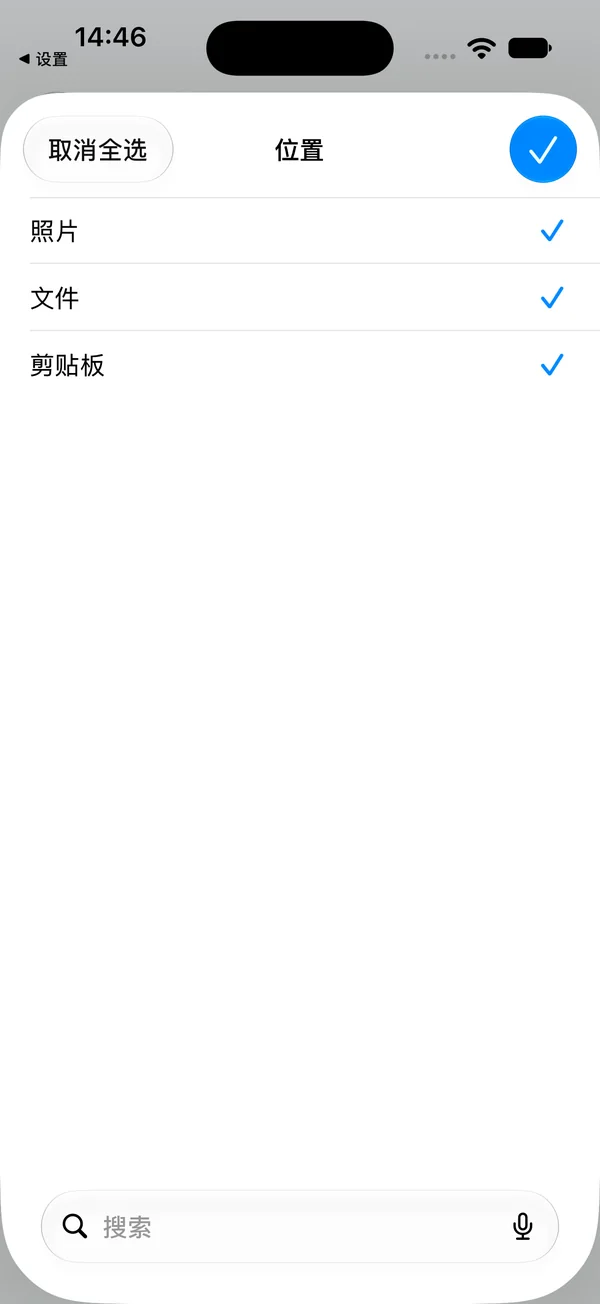
The three destinations shown by iOS.
For the existing preset: Settings → Accessibility → Touch → Back Tap → Double Tap or Triple Tap → Near · Screenshot. Open your target page before tapping. This simulator does not expose Touch/Back Tap, so the physical gesture and its settings screens still require an iPhone check. This is a path description.
Verify in this order
- Run manually first: copy the example text, run Near · Clipboard, and check the code and location in Near.
- Then test a new message: send a matching practice message from another phone. Existing messages will not trigger retroactively.
- Finally test while locked: after first-use permissions, send another message with a different practice code and check the imported card.
取件码:86-204。请到社区驿站取件。地点:幸福小区南门驿站。
What this check covers
| Adding the preset, keyword and run options | Checked in actual iOS 27 UI |
| Example text → Near card | Passed: example text created a card and started presentation; not a Message-trigger test |
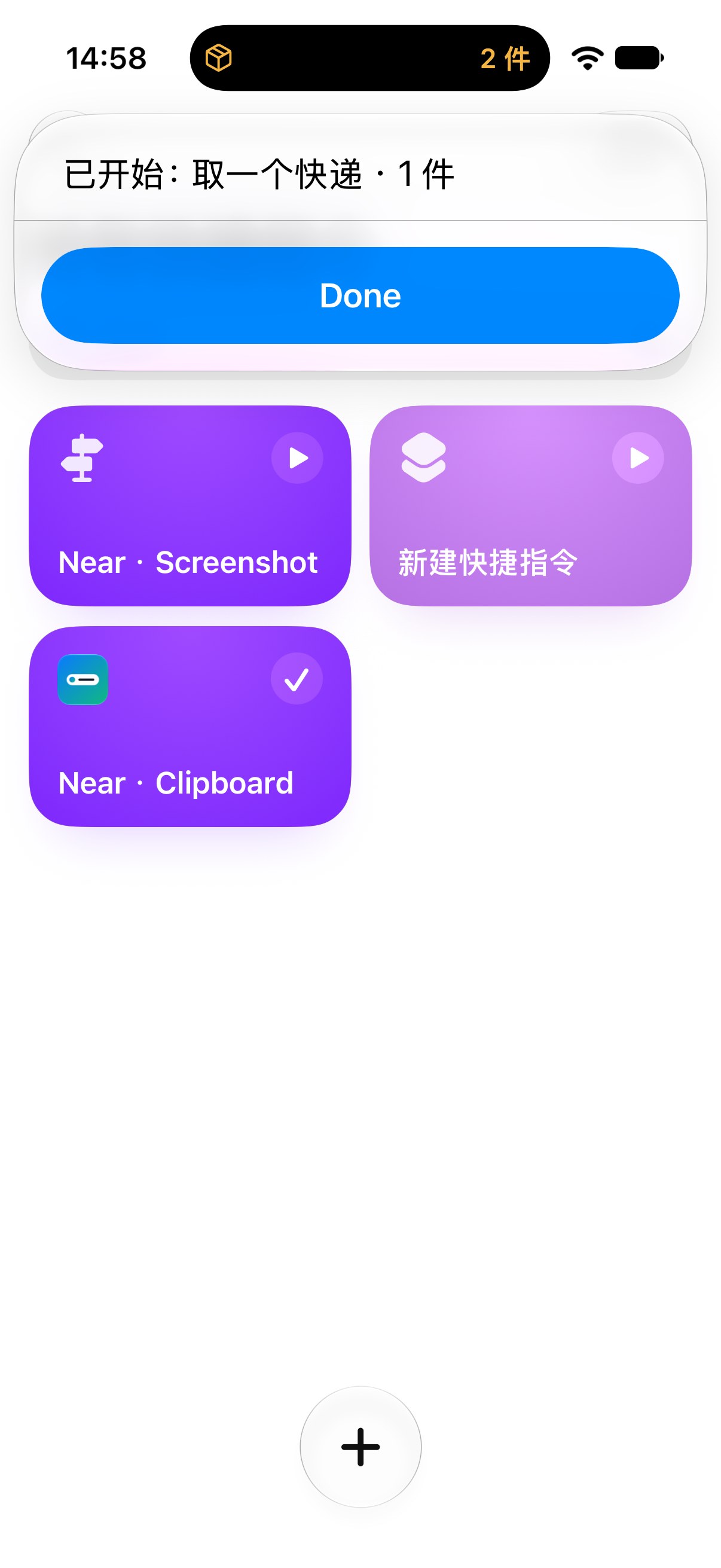
| Manual run on a real iOS 27.0.1 iPhone | Passed: Near action and text-output permissions completed on first use; repeating the same practice input was deduplicated without repeating those two permission prompts. |
| Incoming carrier messages, locked runs, physical Back Tap | Requires a real iPhone |
System images remain from the iOS 27.0 (24A434) simulator running Near 1.1.1 (18). A separate test used an iPhone 16 Pro Max on iOS 27.0.1 (24A446) with a development build of Near 1.1.2 (31). Explicit practice text passed through the system URL, with started, system-display update, and deduplication records verified. This was an iPhone Mirroring session, not certification of the App Store binary, incoming SMS triggers, unattended locked execution, or Back Tap. The reported specific security error has not been reproduced.
Actual manual-run result
If nothing happens
The old Automation tab is missing
Use the iOS 27 editor route above: search from the bottom of Near · Clipboard and choose the Automation category.
The rule says to configure Sender
The condition is incomplete. Change the left Sender to Message, enter a matching keyword, and expand the blue arrow to check the Automation switch.
It still asks me to run every time
Check that Ask Before Running is off. First-use permission is separate from confirmation on every run. Complete one run while unlocked.
A security warning prevents execution
Keep the full warning and the highlighted action. Distinguish a system execution block from a Near import error. Run manually while unlocked and complete the relevant first-use prompts for Near actions and text output; Allow Once may prompt again. Check existing permissions and Allow Running When Locked under Details → Privacy. Keep system security protections enabled. In Near, open All → Settings → Display → Import Run History: no entry means checking the system trigger; received input followed by failure means checking input and error; a saved result means checking presentation.
A timeout error appears
Check for an unfinished first-use permission prompt. After granting the permissions you need, retry with practice text while unlocked. In this test, a delayed permission prompt during Mac lock was followed by a timeout; a later text run succeeded. This does not establish the reported user fault’s cause.
It runs unlocked but fails while locked
Check Info → Privacy → Allow Running When Locked. If it still requests an unlock, record the exact prompt and retest on an iPhone. The switch alone does not prove every action can finish while locked.
It imported old clipboard text
A message automation should pass the received message body to Organize in Near. An unconditional Get Clipboard action may import old content when a message arrives; arrival does not put the message body on the clipboard. Keep the input variable shown in the preset, check that the body is passed, and test with a new practice message. This configuration issue is not a confirmed cause of the reported security error.
It recognized the wrong screenshot
Near · Screenshot captures the current screen at run time. Return to the target page first. To organize an existing image, select it inside Near.
The card imported but is missing from the Lock Screen
Check its status, start time, and Live Activities permission. Import and Lock Screen presentation are separate steps.
Screenshot run says “Write something first”
Check image counts and errors in Import Run History. Receiving images does not prove successful organization, and a settings screen is not a page containing pickup details. Test from a page with a complete practice code and location. If it still fails, retain the entry point, image count, and error.
What should I include in a report?
Include the complete iOS version, Near version, entry point, error, and rule screenshot. Hide personal numbers, actual pickup codes, and message text before sharing.