 Near
Help
1.2.2 feature preview · See the App Store for the version available to download.
What’s new in 1.2.2 · Build 82
Choose a shortcut and follow three illustrated steps. Version 1.2.2 also brings on-time reminder defaults, steadier note selection and quicker image previews.
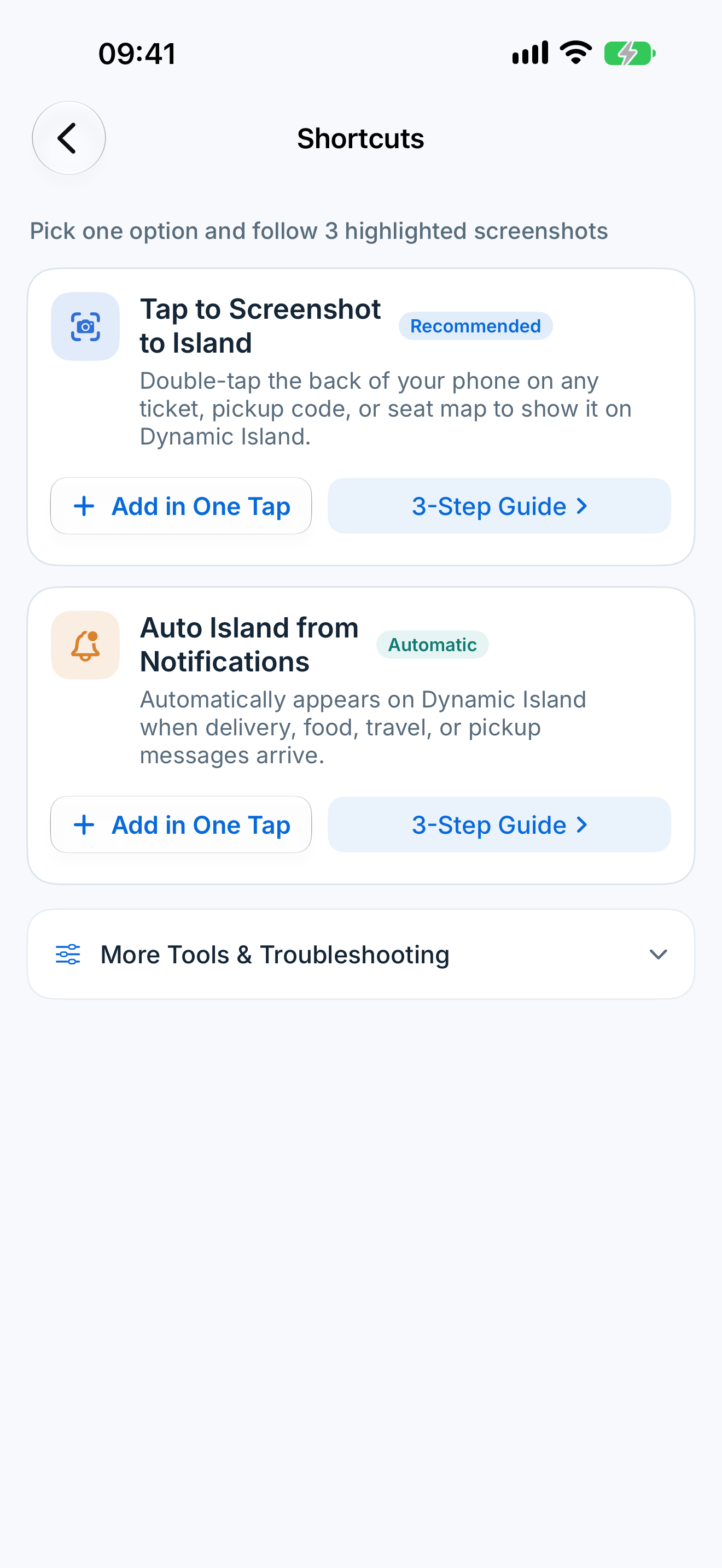
Two cards, three steps
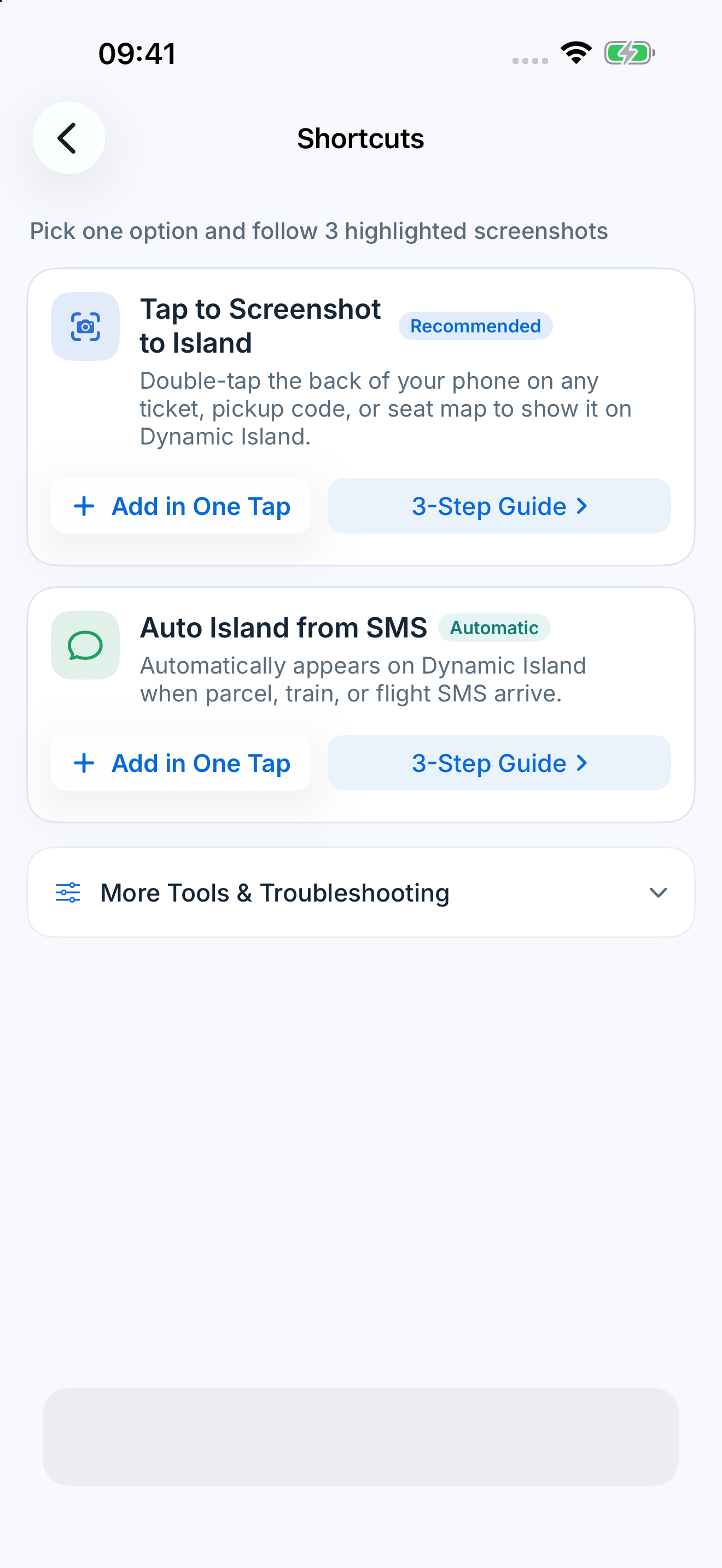
The first card captures a screenshot. On iOS 27 the second uses notifications from 11 preselected apps; use + to change the list. On iOS 16–26 the second card uses text messages that match your keyword.
The preset includes Messages and Chinese delivery, travel and shopping apps such as Cainiao, Meituan and Railway 12306. Use + to choose the apps you actually receive alerts from.
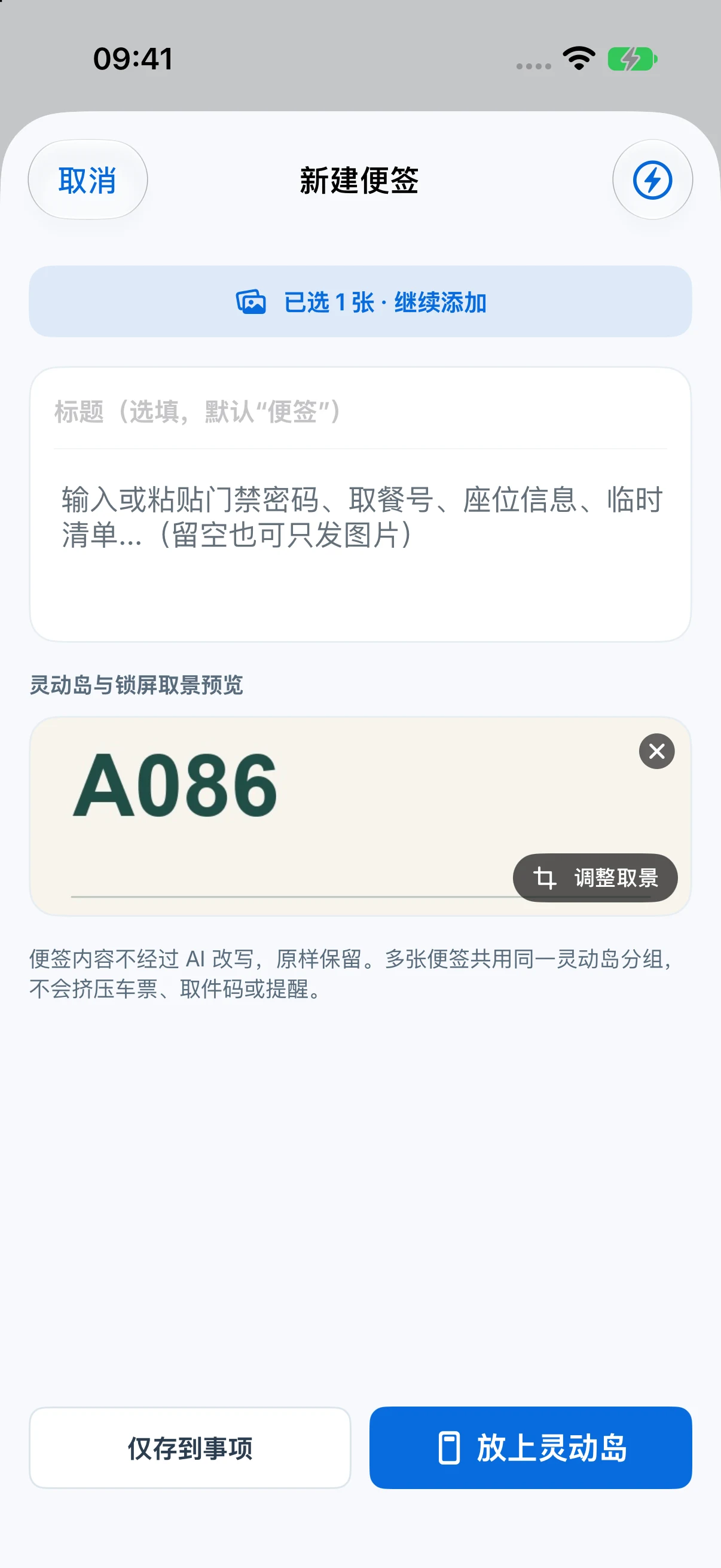
Create and show a Memo
Tap + and open the Memo composer. Type, paste from the clipboard or select up to 6 photos at once. Choose Show on Dynamic Island to pin it, or Save to Items to keep it in your library.
Memos share one Live Activity. Use the arrows on the expanded Island, Lock Screen or watch to turn the page. Put a Memo away to keep it in your library. Open it there to show it again.
Frame the part you need
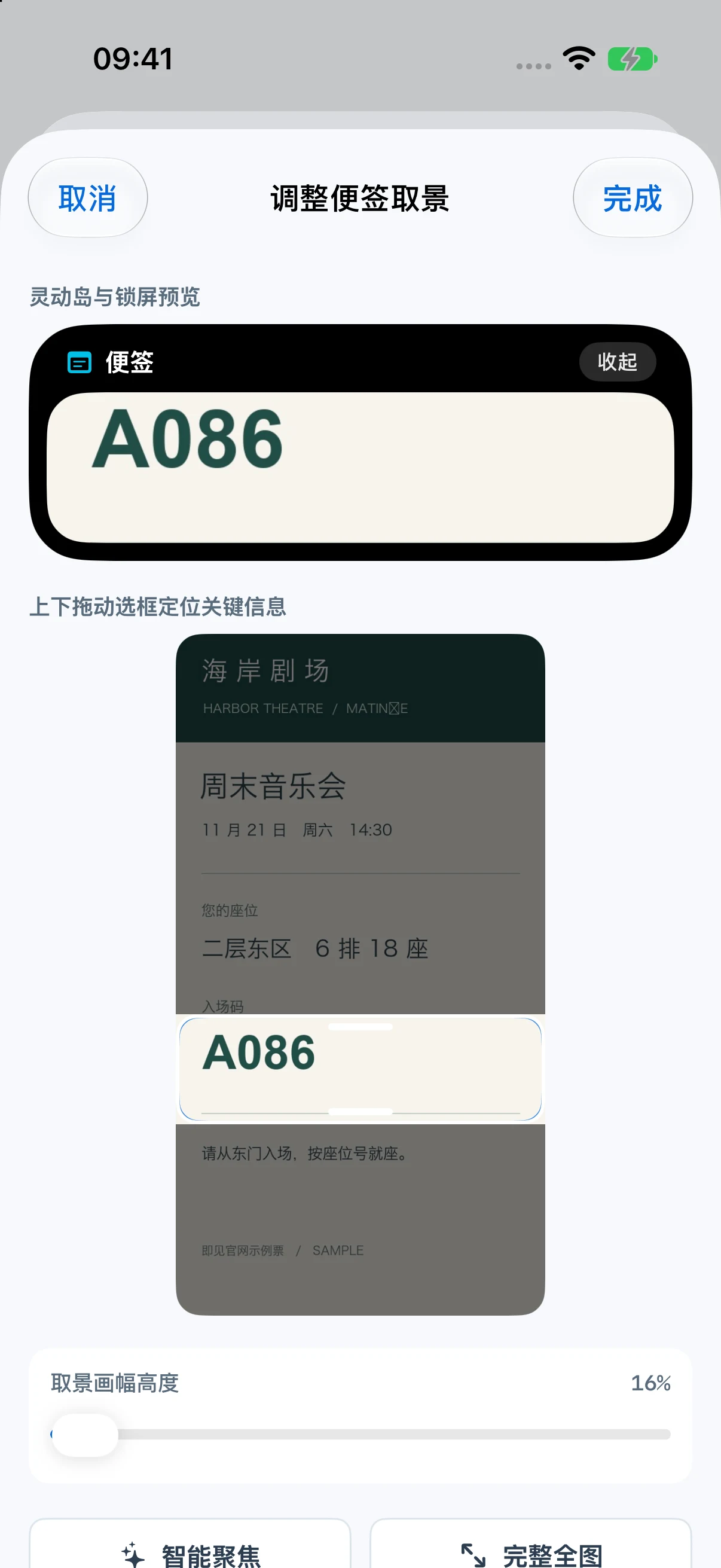
Near looks for codes and key text in tall screenshots on your device. Wide and square images start with the whole frame.
Tap the crop control on the preview or in a saved Memo. Move the frame, adjust its height and check the preview before saving. Smart focus and full image are available at any time. The original stays intact.
Home Screen widgets extend the image vertically to fit their shape while preserving its full width, including text and QR codes at the edges. Monochrome Lock Screen widgets can show up to three lines of on-device OCR summary.
Use Shortcuts or the share sheet
One-tap setup prefers the signed shortcut included in Near. Its input is already connected. Open downloads from this page in Files with Shortcuts. More Tools includes text recognition, run history and a single page for pinning either a screenshot or the clipboard as a Memo.
Unlock your phone for the first permission request, then try a new matching message. If your notification template already includes Messages, enable only one trigger for the same texts.
More tools and troubleshooting
- Screenshot to Near即见 · 截屏上岛
- Pin Screenshot Memo即见 · 截屏钉便签
- Pin Clipboard Memo即见 · 剪贴板钉便签
- Notifications to Near即见 · 通知识别上岛
- Messages to NearNear · Messages
- Saved Screenshot OrganizerNear · Image Input
- Take ScreenshotNear · Screenshot
- Text to NearNear · Text
- Notifications · iOS 27即见 · 通知识别上岛
- Message · iOS 27即见 · 短信自动上岛
Reminders at the right time
New reminders and alarms appear at their scheduled time by default. Edit an item to choose a lead time or a specific time. You can also change the default in display settings. Your saved choice carries over when you edit again.
On iOS 26 or later, allow alarm access and select an audible system alarm to hear it ring even in Silent mode. Set a repeat interval and limit for follow-up reminders. Stopping a bill alarm leaves the bill outstanding until you mark it paid.
For supported medication, bill, calendar and travel reminders, turn on repeating alerts and choose the interval and maximum count. Snooze to be reminded later or acknowledge the alert to stop it.
Silencing a bill reminder leaves the balance due. Mark it paid after payment. If reminders are quiet, open the alarm and notification check under Me, then select iPhone, Apple Watch or both. System alarms require iOS 26 or later and permission.
Dictate or zoom on Apple Watch
Dictate a new item on Apple Watch. The text is sent to the paired iPhone for recognition and card creation; if disconnected, it waits for the connection to return.
Tap a Memo image to open it full screen. Turn the Digital Crown from 1.0× to 3.2×, drag to pan and double-tap to reset. Use the arrows to flip through Memos or put one away. For missing taps, allow watch notifications and try the haptic test.
Use pickup, travel and appointment cards
Add packages as their messages arrive. Group codes by pickup point or locker, choose large digits or a compact grid and tick off each parcel as you collect it. Dedicated Chinese Tuxi locker and J&T station templates require official rule pack revision 14 or later. Check the installed revision in recognition settings.
Check both times and all gates on a rail screenshot. For an appointment, enter travel time and a buffer to see when to leave. A parking notice with a stated time limit can also start a countdown.
Continue a Live Activity
New reminders and alarms appear at their scheduled time by default. Edit an item to choose a lead time or a specific time. You can also change the default in display settings. Your saved choice carries over when you edit again.
When a new item is due, Near can show it and keep the previous one queued until you finish. A train or flight already marked as boarded keeps its place.
A single Live Activity lasts about 8 hours. On iOS 26 or later, the system may let Near start a successor for a long journey or an uncollected package, up to 24 hours for pickups. Reopening Near can resume Memos, to-dos, parking and timers.
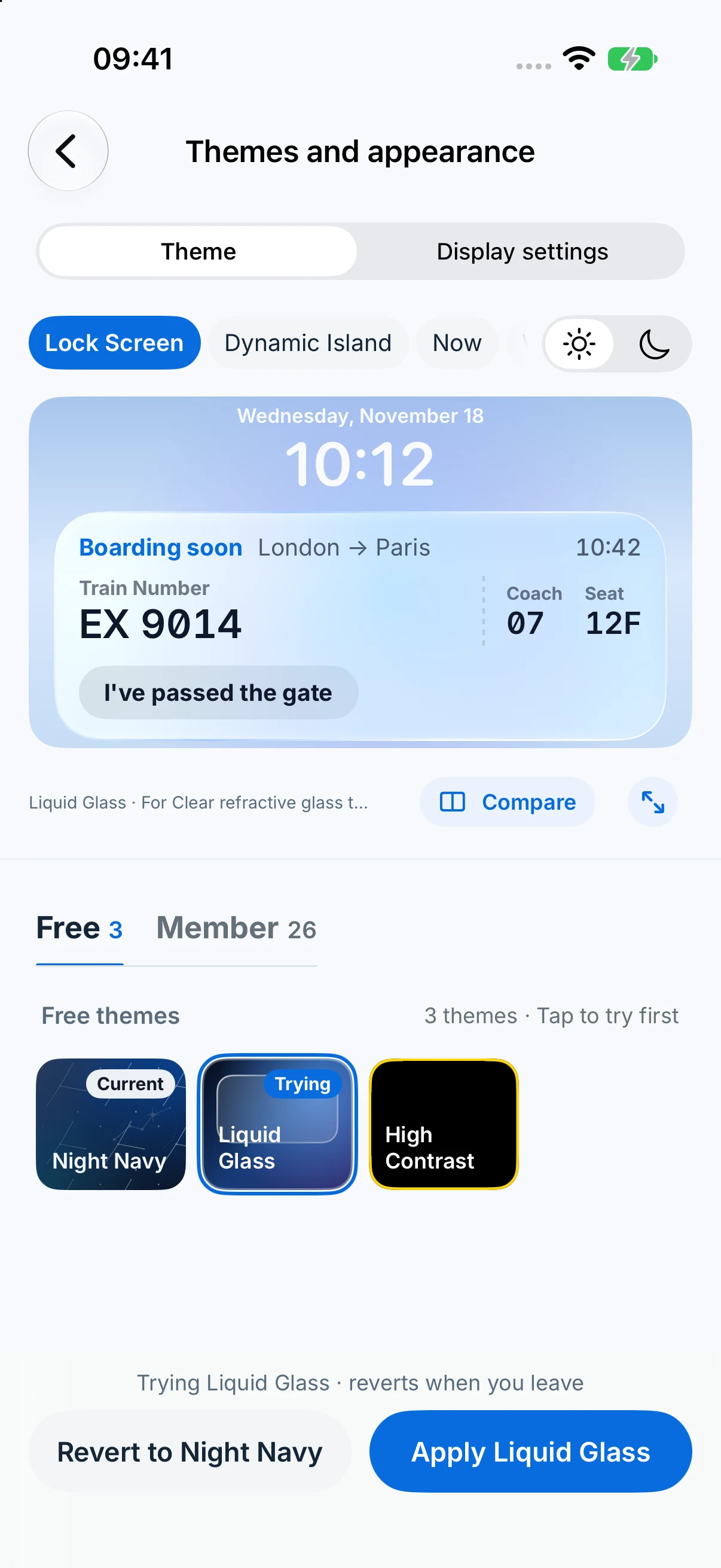
Try 29 themes on the same ticket
29 themes, including three free choices: Night Navy, transparent Liquid Glass and High contrast. Pro adds 19 illustrated themes and 7 color palettes. Choose Compact, Standard (default) or Large text density, and Follow theme, Rounded, Monospaced or Standard numerals. Your cards, ticket stubs and journal share the look.
Your light or dark appearance also applies to detail screens and dialogs.
Restore early Pro access
Eligible early users can verify lifetime Pro with the Apple Account originally used to get Near. If access is missing, try Restore Purchases on the membership screen.
This version also improves localization in 20 languages, reduces duplicated resources and refines watch launch, widgets and background saving.
Bills, currencies and the right due date
Recognize CNY and foreign-currency balances in one credit-card message. Bills can repeat quarterly; a date on the 28th–31st adjusts for shorter months without shifting later cycles. Structured invitations supply the event, time and place; add travel time and a buffer to plan when to leave.
Clear old items, keep the next occurrence
In Items, bulk-clear expired or completed entries. Future occurrences of repeating items stay scheduled. The revised Help and Getting Started pages bring the key steps together.
Smoother notes and previews
The list stays in place when you select several notes. Checklist badges stay visible, Return starts another entry, and edits recover more reliably after a conflict. A compact Lock Screen card fits multiple pickup codes.
Five improvements for high-refresh displays (120 Hz)
Attachment previews are decoded at display size and cached. Tutorial crops are reused, and time highlighting and live dictation reuse compiled patterns. Encoding a copied original and reading or writing backup and sync attachments now run in the background.
iCloud backups and local records
Recognition works offline. When a Pro user enables iCloud, eligible cards, notes, ordinary journal entries and images travel over an encrypted connection to their private iCloud database. Structured vaccination, medication and appointment health records and their linked sources stay on the original device, along with completion titles linked to journal entries.
Frequently asked questions
Where does a hidden Memo go?
It stays in your library. Open the Memo and choose to show it on the Island again. Create and show a Memo ↗
Does silencing a bill mark it paid?
The payment status stays open. Mark it paid after you make the payment. Reminders at the right time ↗
How do I read a small seat number on my watch?
Tap the Memo image, turn the Digital Crown to zoom and drag to the seat number. Double-tap to reset. Dictate or zoom on Apple Watch ↗
How do I send a screenshot or text message to Dynamic Island without opening Near?
The first card captures a screenshot. On iOS 27 the second uses notifications from 11 preselected apps; use + to change the list. On iOS 16–26 the second card uses text messages that match your keyword. Tap the blue › on the top trigger. Use + to change the notification sources. Turn on Automation and try the next new message that matches the trigger. First add Near · Messages. In Shortcuts › Automation › + › Message, enter a keyword and select that shortcut. Choose Run Immediately on iOS 17–26, or confirm when prompted on iOS 16. For another app’s notification, use a screenshot. Use Shortcuts or the share sheet ↗
What happens when a quarterly bill falls on the 31st?
A bill starting on January 31 is next due on April 30, then July 31. The shorter month only changes that occurrence. Bills, currencies and the right due date ↗
Will clearing completed items remove my next reminder?
In Items, select expired or completed entries to clear them together. Future occurrences of recurring items stay scheduled. Clear old items, keep the next occurrence ↗